Maintenance
Part of Reading smartphone basics with a sceptical eye
Smartphone upkeep and security checklist for weekly, monthly, and event based checks
Smartphone upkeep and security checklist with weekly and monthly checks for updates, backups, storage, locks, permissions, battery care, travel, repair, and resale.
Backup : A saved copy of data that may help restore it after loss, damage, or another problem.
Synchronization : A service that mirrors changes between places, sometimes including a deletion.
Recovery credentials : The account details and second factor needed to regain access or restore data.
Permission : An app's access to phone features or information such as the camera, microphone, photos, contacts, and location.
Screen lock : A passcode, password, fingerprint, or face check used to restrict access to the phone.
Storage headroom : The free space available for updates, temporary files, and new camera content.
Event check : A focused review before travel, repair, resale, recycling, or a major software change.
Start with the cadence, not a full audit
Use the glossary as a quick route through a phone review: a short weekly pass notices changes, a monthly pass proves recovery and permissions, and an event check prepares for a change in location, service, or ownership. That cadence keeps routine observations separate from decisions that need preparation.
| When | Terms to apply | Checks |
|---|---|---|
| Weekly | Screen lock, storage headroom | Check operating system, security, carrier, and app updates; look for storage changes and account alerts; inspect charging equipment. |
| Monthly | Backup, synchronization, recovery credentials, permission | Confirm the last successful backup, included categories, account access, and app permissions; remove old account sessions. |
| Before a change or handoff | Event check | Prepare data and recovery information before travel or repair; verify transfer and erase the phone before resale or recycling. |
A restart can help when the phone has behaved abnormally or has not restarted since updates. Do not begin an update with a nearly empty battery or unexplained power faults. Back up first, charge with known-good equipment, and follow the manufacturer preparation guidance. The update readiness checklist adds another preparation reference.
Make a recovery path you can actually use
A backup earns confidence only when you know what it contains, where it is held, and how to regain access. Check its completion date after creating important photos or files, review the included categories, and make sure the account credentials and recovery details are available when needed.
RIT's mobile security guidance pairs screen locks and prompt system updates with regular device backups. Built-in backup methods are available on both major platforms, but a visible completion date and a check of the saved categories still matter when you need to assess a copy.
Monthly backup review
- Note last successful backup completion date
- Confirm photos and videos separately
- Export authenticator data not covered
- Check local files, recordings, downloads
- Store recovery codes away from phone
- Keep one independent copy of irreplaceable files
Do not treat synchronization as proof of an independent backup: deleting a photo on the phone may also remove its cloud copy. The backup roles comparison separates those functions, while cloud storage basics and the cloud recovery checklist offer related checks.
Close the routes into a locked phone
A strong password or passcode, a usable automatic screen lock, and current recovery details make it harder for someone with the phone to reach local personal information or signed-in services. Check enrolled fingerprints and faces, notification previews, and any devices or sessions you no longer use.
- Confirm the recovery email address and phone number for important accounts.
- Turn on multi-factor authentication for major accounts.
- Learn how lost-device location and remote erasure work.
- Check that the screen lock engages after a short, usable delay.
NIST discusses the risk of an unattended, unlocked phone, including access to local information and authenticated services. Its mobile-device security publication includes automatic locking after inactivity among the mitigations. A screen lock helps only if it engages before another person can reach the device.
Account and lock checklist
- Use long, non-obvious passcode or password
- Keep automatic screen locking on
- Verify enrolled fingerprints and faces
- Remove old devices and sessions
- Confirm recovery email and phone number
- Turn on multi-factor authentication
- Review lock-screen notification previews
Read permissions and capacity as clues
Permissions and storage headroom provide useful signals during a monthly review. Where the phone allows it, sort apps by recent use, storage, battery use, and permission. Investigate sudden changes before deleting anything, since an unfamiliar download or app may need to be identified first.
App and permission checklist
- Remove unused apps after preserving records
- Restrict precise location to needed apps
- Review camera, microphone, contacts access
- Prefer access only while using app
- Turn off background activity where unneeded
- Check subscription status separately
- Install replacements from trusted store
Remove a permission only after considering the feature's purpose, then test the app so you can connect any problem to that change. For a wider view across devices and accounts, see the steps for hardening personal devices and the personal account checklist.
- Keep enough free space for updates, temporary files, and camera use.
- Check trash folders before emptying them; review large videos, offline media, message attachments, and downloads.
- Clear a cache only when you understand the effect; do not clear app data without knowing how to sign in and restore local records.
- Check whether cloud optimization leaves full-resolution originals online only.
If storage falls quickly, look for a recent recording, offline download, app update, or message attachment. Random deletion can make the cause harder to trace. Keep device warnings in view and use common phone fixes when a symptom needs a first check.
Storage checklist
- Keep enough free space for updates
- Empty trash folders only after checking
- Review large videos, offline media, attachments
- Clear app cache only when understood
- Do not clear app data without restore plan
- Check cloud optimization for full-resolution originals
Pair physical checks with connection cleanup
Physical condition and saved connections belong in the same routine because either can change without an account alert. Check the battery-health or diagnostic screen if available. Note shutdowns, rapid percentage jumps, swelling, unusual odor, or persistent heat, and include wireless connections in the review.
- Keep exposed openings clear without putting metal tools inside them.
- Remove a damaged case if it presses buttons or traps debris.
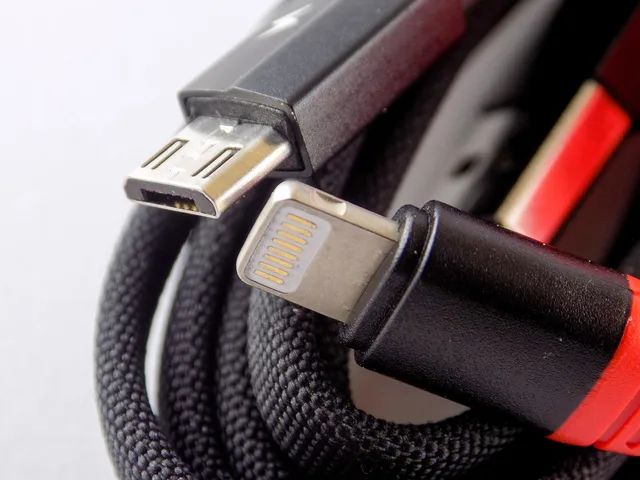
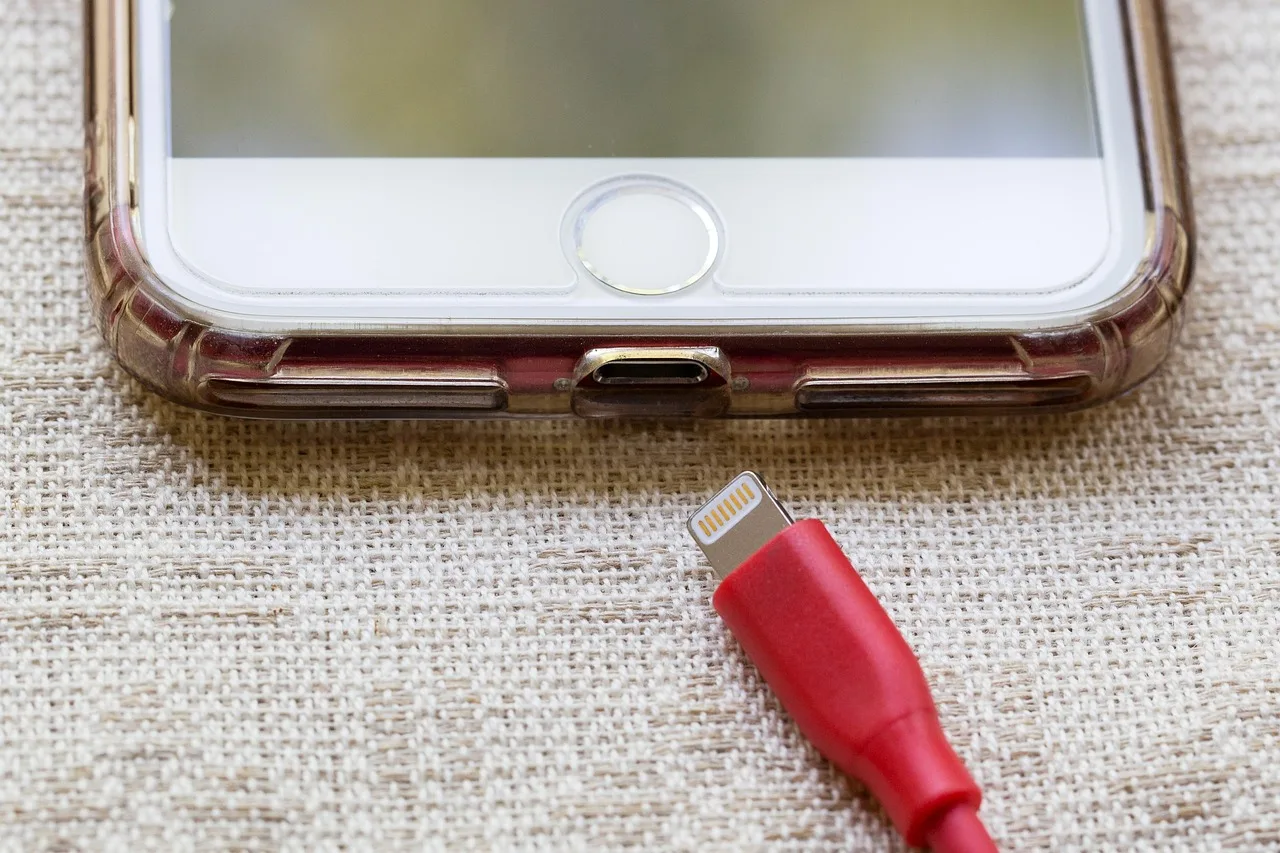
- Use compatible chargers and undamaged cables; keep the phone away from prolonged heat and direct sun.
- Forget old hotel, venue, rental, and guest Wi-Fi networks; remove cars, speakers, watches, and computers no longer used.
- Review saved VPN and device-management profiles, hotspot details, and sharing features.
Do not puncture, squeeze, freeze, or keep charging a swollen battery. Move it away from combustible materials only if safe, and follow local emergency and disposal guidance. For routine charging care, use the battery care checklist; seek qualified service for swelling, separation, smoke, or burning smells.
Battery and physical condition
- Check battery-health or diagnostic screen
- Note shutdowns, jumps, swelling, odor, heat
- Keep vents and openings clear
- Remove damaged case pressing buttons
- Use compatible, undamaged chargers and cables
- Keep phone away from prolonged heat
- Seek qualified service for swelling or smoke
Use the network maintenance checklist when reviewing saved network connections. Turn off sharing features that are not in use, but consider the services you rely on before changing Wi-Fi or Bluetooth settings, including watches, hearing devices, location functions, home controls, and calling features.
Reapply the terms when plans change
An event check brings the same terms together when access, power, or data handling may change. Before travel, download offline maps and tickets, check roaming costs, record emergency contacts, test a backup, and keep recovery information somewhere other than the phone.
- For repair:Back up the phone and document its condition. Remove payment cards if instructed, and ask whether repair requires the passcode or an erase. Do not provide an account password when temporary service mode or supervised access will do.
- For resale or recycling:Transfer and verify data, sign out as instructed, remove SIM and storage cards, and erase the phone safely using the supported process. Remove it from device and activation lists, and keep proof of trade-in or electronics recycling.
- For a major update:Check power, backup status, and preparation guidance before starting. Use known-good charging equipment if the battery is low or the phone has shown power faults.
Turn observations into useful evidence
A short record gives a support conversation more useful evidence than vague impressions. Note the date, symptom, update, app or accessory change, storage level, and result. These details can help trace whether a repeated issue followed a software, app, accessory, or network change.
Mobile operating systems manage background apps, so closing every app is not a routine battery-saving task. Close one when it is stuck or its maker directs you to do so. After changing an app permission, test the app so the result can be tied to that specific adjustment.
There is no universal free-storage percentage to target. Keep enough room for the largest expected update, temporary processing, and usual photo or video use, then respond to device warnings early. Empty trash only after checking its contents, and avoid clearing app data unless you understand sign-in and restoration.
An automatic backup is not proof of recovery on its own. Confirm that it ran, includes the data you need, and can be restored using credentials you can access. Recheck those details after creating important files or photos instead of relying only on a setting label or an old completion date.
Leaving Wi-Fi or Bluetooth off when unused can reduce unwanted connections, but it can also disable services you use. Consider watches, hearing devices, location functions, home controls, and calling features before changing those settings. For hardware, operating systems, apps, and stored data, consult smartphone basics.