Maintenance
Part of Software updates explained: what to check before and after
Software update readiness checklist for phones, computers, and more
Software update readiness checklist for source checks, backups, storage, power, compatibility, recovery access, installation time, and post-update tests.
What to take away
- Use the short checklist for routine releases and the full checklist for major system or firmware changes.
- A backup counts only when it contains the right data and you can reach it with known credentials.
- Free storage is working space, not just the final package size.
- Record the starting version and recovery information before a consequential update.
- Verification should test the functions you depend on, not only the version screen.
This checklist is for a decision at the device. It separates routine preparation from the extra checks a broad platform change or sensitive product needs. The step-by-step form of the same routine is how to update devices safely.
Routine update card
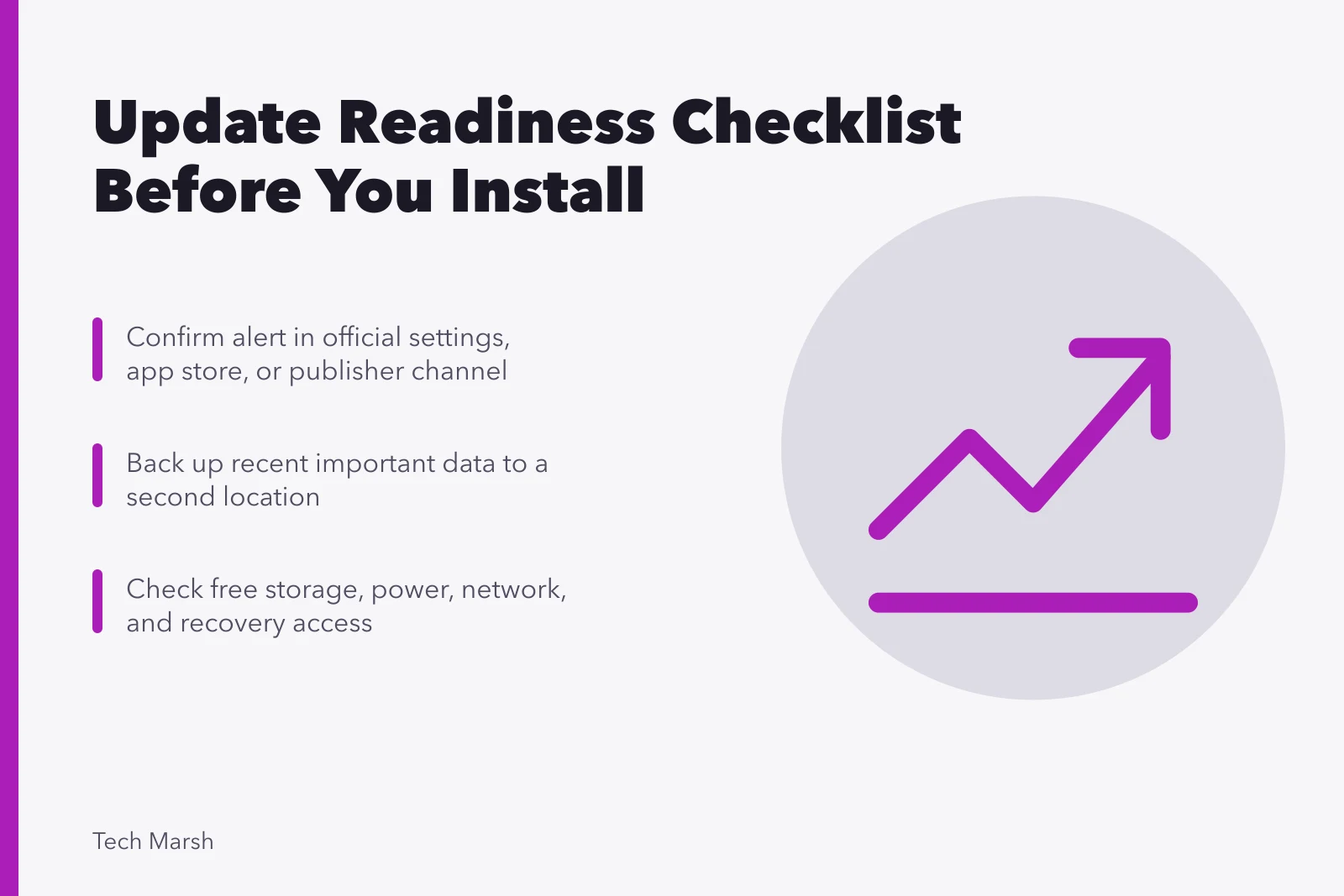
Before installation, confirm each item:
- The alert also appears in an official settings screen, app store, or publisher channel.
- The release applies to the exact device or application.
- Important work is saved.
- Recent important data exists in a second location.
- The device has enough free storage.
- Power and network conditions meet the instructions.
- There is time for installation and a possible restart.
- Required passwords or passcodes are available.
After installation:
- The update history shows success.
- The reported version matches the installed release.
- Network access and essential apps work.
- Backup and security services resumed.
- No new error or unexpected permission request appeared.
Confirm the update channels
One product may have separate channels for its operating system, apps, browser, security data, accessory firmware, and mobile carrier settings. Open each control deliberately. Do not assume that updating apps also updates the phone system. What each of those channels actually delivers is set out in update types compared.
Update channels compared
Channel
- Operating system
- Phone system
- Apps
- Individual applications
- Browser
- Web browser
- Security data
- Threat definitions
- Accessory firmware
- Accessories
- Carrier settings
- Mobile network
What it updates
- Operating system
- Over-the-air, maker or carrier
- Apps
- App store
- Browser
- Browser settings
- Security data
- Security app
- Accessory firmware
- Maker app or tool
- Carrier settings
- Carrier or settings
Timing differs by channel. Phone system releases arrive as over-the-air updates. On Android, device manufacturers and sometimes wireless carriers distribute them, not the platform owner.
So two phones on one kitchen table can sit on different versions for months. Use the menus on the actual product because makers customize both the path and the schedule.
Major change add-on
For a major operating-system upgrade, router firmware release, computer firmware update, or device used for important work, add these checks:
Major update add-on checks
- Compatibilityapps, peripherals, file formats
- Recoveryrollback offered and duration
- Encryptionopen encrypted storage after recovery
- Accountsreceive sign-in and MFA prompts
- Configurationspecial settings restorable
- Continuityanother device for essential work
| Area | Question | Record |
|---|---|---|
| Compatibility | Are required apps, peripherals, and file formats supported? | product and version list |
| Recovery | Is rollback offered, and for how long? | official recovery page or case number |
| Encryption | Can you open encrypted storage after a recovery prompt? | recovery-key location, never the secret in public notes |
| Accounts | Can you receive sign-in and multifactor prompts? | accessible recovery method |
| Configuration | Can special settings be restored? | export or screenshots where safe |
| Continuity | Is another device available for essential work? | alternate route |
Do not place passwords or recovery keys in an unprotected checklist. Record where the secured information is stored.
Storage check
The downloaded package is not the only space needed. Installation may require room to unpack files, retain a previous version, create temporary data, and complete cleanup. Check the publisher's stated requirement instead of estimating from the download size.
Back up before clearing space, not after. Monash University's IT guidance on smartphone backups makes the point plainly: a regular backup means a replaced, lost, or damaged device still leaves you a recent copy to restore, and both major phone platforms include free built-in methods.
The same discipline applies before any large update, because storage cleanup and a failed install are both moments when files disappear. A household that lost a folder to exactly that kind of cleanup is a family file-recovery case.
Power and interruption check
Plug in portable devices when instructed and confirm that the outlet and cable are stable. For a router, hub, television, or appliance, avoid a firmware update during known power trouble. Do not unplug, close, or reset the product while it reports that firmware is being written.
If the progress display pauses, note the time. Consult the exact model's official support instructions before forcing a restart. What to record before contacting support is set out in common laptop problems and fixes. A long verification stage can be normal, while an interruption during a write can create a larger fault.
Post-update test plan
Choose tests before installation. A short plan might include:
- Start the device and sign in.
- Connect to the expected network.
- Open two essential files or services.
- Test audio, camera, printing, or accessories used daily.
- Confirm backups and security controls are active.
- Review new privacy, permission, or default-setting prompts.
Keep the checklist with the date, old version, new version, and result when the device supports important household or business tasks.
Common questions
How much battery charge is enough?
Use the device maker's current requirement and connect to power when instructed.
Should I clear every temporary file first?
No. Use supported storage tools and remove only data you recognize or have backed up.
Is one cloud copy a backup?
It may be one copy, but synchronization can copy deletions and errors. Check the service's recovery behavior.
What should I test after a router update?
Check internet access, Wi-Fi networks, security settings, guest access, connected devices, and any special configuration.