Maintenance
Part of Modems, routers, Wi-Fi, and wired links: home networking basics explained
Home network checklist: provider terms, records, outage plan
A home network maintenance checklist for equipment records, provider terms checked against the FCC label, monthly speed tests, and an outage plan.
What to take away
- Keep a record of every piece of equipment, who owns it, and when its warranty ends.
- Compare the bill with the broadband label for the plan you ordered.
- Measure performance from named locations with the same method each month.
- Prepare a restart sequence and support record before an outage, and keep them offline.
- Log every change with a rollback note.
Run this review monthly and after a provider, router, access-point, password, or major device change. Do not change several settings at once. A saved baseline makes failures easier to reverse, and the records below are what make it a baseline.
Record the equipment and who owns it
A written record turns a vague outage into a support call that gets answered. Start with the account, then list every device that carries the service.
- Record provider, plan, support number, and account owner.
- List modem or optical terminal, router, switches, access points, and mesh nodes.
- Record model, serial, firmware, location, power supply, and ownership for each.
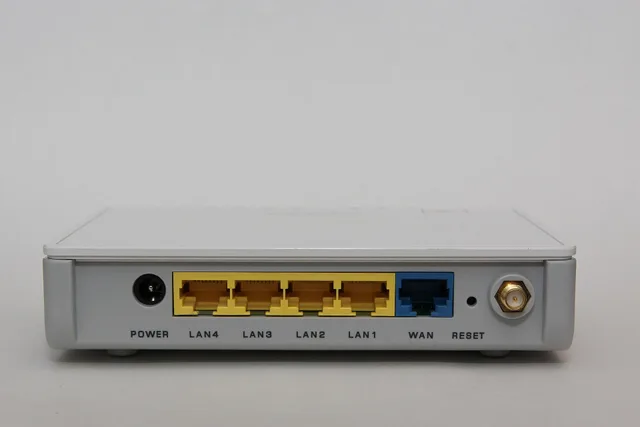
- Label cables and port roles.
- Store warranty and replacement dates.
Ownership decides who fixes a fault. Provider equipment is handled through the provider, while equipment you bought depends on the manufacturer's warranty and support, so check which applies before you call. Avoid publishing the full network diagram, because it can contain addresses, device names, serials, and security details.
Equipment that no longer receives fixes, or cannot support required security settings, is a candidate for replacement. Record that decision with the date.
Check the provider terms against the label
The FCC's broadband consumer-label fact sheet lists plan information including price, introductory terms, added charges, data allowance, download and upload speeds, latency, network-management practices, privacy policy, and support. Save the label for the plan you order and compare it with bills and observed service.
- Confirm the regular price after promotions.
- Record equipment, installation, termination, and other fees.
- Check data limits and overage terms.
- Compare advertised download, upload, and latency figures.
- Note support and complaint routes.
- Review provider privacy and network-management disclosures.
Speed, throughput, and latency are not interchangeable terms. Home networking basics explains what each one describes, which matters when a figure on the label is compared with a figure on a speed test.
Measure observed service the same way each month
Use one current wired computer and one representative wireless device. Keep the method fixed, so that a change in the numbers reflects the network and not the test. Do not compare tests from different devices or servers as though only the router changed.
- Test wired service at the router.
- Test Wi-Fi in each important room.
- Record download, upload, latency, time, band, node, and device.
- Note simultaneous calls, streams, backups, or game downloads.
- Check packet loss during real-time trouble.
- Keep results from before and after changes.
When the results fall short of the label, isolating the failing layer comes before any call to the provider. Saved results from earlier months show whether the shortfall is new.
Run a short monthly security pass
CISA's guidance on using wireless technology securely covers router password changes, encryption, firewall use, software updates, safer placement, remote-management controls, and device protection. Use its principles with the current manual for each product, because interfaces and supported protocols change.
- Check that every router, switch, access point, and mesh node still receives fixes.
- Keep the administrator password unique and separate from the Wi-Fi password.
- Compare the router's connected list with owned devices.
- Test whether guest isolation still blocks private devices.
- Review UPnP, port forwarding, dynamic DNS, and cloud access.
An unfamiliar entry in the list is not always an intruder. Private or randomized addresses, generic labels, and forgotten devices can look unfamiliar, so identify it methodically before blocking it. The first configuration of those settings is covered in setting up a router securely.
Prepare for an outage
Write the plan while the network works. During an outage nobody wants to search for a status-light chart on a connection that is down, so keep the sheet on paper or on a phone that does not need the router.
- Write the normal restart order and wait times.
- Keep status-light meanings and support contacts offline.
- Know which phones or alarms depend on router power.
- Keep a safe approved backup communication method.
- Identify equipment covered by battery backup.
- Do not connect a generator or improvised power source without proper electrical controls.
The devices that join this network have their own review in the personal device and account security checklist.
Keep a change log
For each change, record date, person, reason, old value, new value, affected devices, test, and rollback. Do not store clear-text passwords in the log. A log that is easy to read tells the next person what changed before a fault appeared, and it shortens the support call.
Common questions
How often should this review run?
Monthly, and after a provider, router, access-point, password, or major device change.
How often should a router restart?
There is no universal schedule. Restart for a documented fault, update, or provider instruction. Repeated required restarts suggest a problem to diagnose.
Should I save a router configuration backup?
Yes, if the router supports a protected, compatible backup. Also record the firmware version because old configuration files may not restore cleanly to new software.
What belongs on the outage sheet?
The restart order and wait times, status-light meanings, and support contacts, kept somewhere that does not depend on the router.