Rules
Part of Reading smartphone basics with a sceptical eye
Sensible first fixes for common smartphone problems
Common smartphone problems and first fixes for freezing, battery drain, heat, storage, charging, signal, Wi-Fi, Bluetooth, and app crashes without guesswork.
What to take away
- Protect data and physical safety before trying repairs.
- Change one thing at a time and record the result.
- Separate phone-wide faults from one-app, one-network, or one-accessory faults.
- Restart and update before deleting data, unless damage or battery danger makes continued use unsafe.
- Treat factory reset as a last diagnostic step backed by a verified recovery plan.
Most common smartphone problems can be narrowed by scope, timing, and conditions. Ask what fails, when it began, what changed, and whether the fault follows the phone, app, network, account, cable, or location. Naming the layer that owns each job makes that easier, and smartphone basics separates hardware, operating system, apps, and data.
Stop troubleshooting and seek qualified help if the phone is swollen, smoking, hissing, leaking, extremely hot, wet while powered, or visibly damaged near the battery. Do not keep charging it to see whether the warning disappears.
First triage
Record these facts before changing settings:
Record these facts:
- Which screen, app, or function fails, and the exact wording of any error.
- When the problem started and whether it is constant or intermittent.
- What changed just before it begana system update, app install or update, new accessory, case, charger, cable, carrier change, SIM or eSIM move, or a new location.
- Whether the fault follows the phone, one app, one account, one network, one accessory, or one place.
- Battery and charging behaviorpercentage when it happens, charging speed, heat, and whether the phone powers off on its own.
- Whether the phone is swollen, wet, unusually hot, or physically damaged.
- Whether you have a current backup and can access your accounts and second-factor methods.
Triage facts to record first
- Model and software version
- Free storage and battery percent
- Exact error wording
- Affected apps, networks, accessories
- When the problem started
- Recent drops, repairs, new accessories
- Does another device fail too
Make a backup if the phone is stable enough. Screenshots and screen recordings can preserve intermittent symptoms, but do not record private codes or financial details.
Frozen screen or repeated restart
First wait briefly. A large update, restore, or photo process can delay response. If the device remains stuck, use the ordinary restart control. A forced restart uses hardware buttons and does not normally erase user data. The common iPhone and Android sequences are below; exact models can vary.
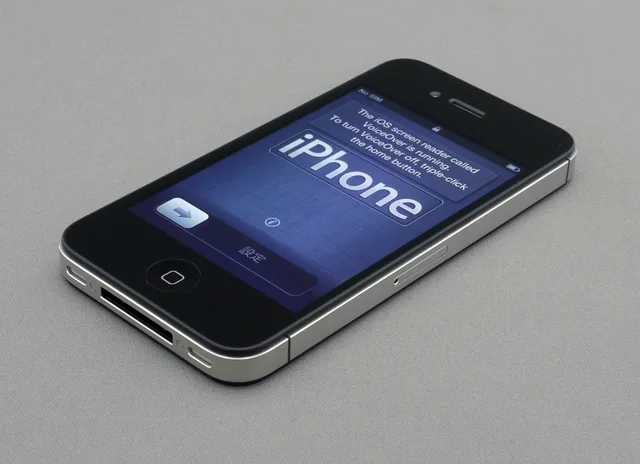
iPhone: On iPhone 8 or later, including iPhone SE (second generation) and later, press and quickly release the volume up button, press and quickly release the volume down button, then press and hold the side button until the Apple logo appears. On iPhone 7 and 7 Plus, press and hold the volume down button and the side button until the Apple logo appears. On iPhone 6s and earlier, press and hold the Home button and the side or top button until the Apple logo appears.
Android: On most Android phones, press and hold the power button until the screen restarts. If nothing happens, press and hold the power button and the volume down button until the screen restarts. On some Samsung and other models, that power-and-volume-down combination is the standard forced restart; a few models use power and volume up.
Frozen phone fix order
- Wait briefly for updates or restores
- Use the ordinary restart control
- Forced restart with hardware buttons
- Check storage and pending updates
- Test the suspect app separately
- Boot into safe mode to isolate
- Remove recent apps, then back up
After restart, check storage and pending updates. If the trouble began after one app was installed or updated, test that app separately.
Safe mode is a diagnostic startup state that loads only core components. A fault that disappears there points to downloaded software, not the operating system.
On most Android phones, press and hold the power button, then touch and hold Power off or Restart on screen until the safe mode prompt appears, then tap OK. On some models, turn the phone off, then press and hold the power button and volume down button together until the home screen appears. Exit safe mode by restarting the phone normally. iPhones do not have a general safe mode; for a suspected bad app, delete the app or test after a backup.
The wider order holds on any brand: restart, install stable system and app updates, clear storage headroom, test in safe mode. Then remove recently added apps one at a time, and complete a backup before considering a reset.
Fast battery drain
Check which apps and system functions used power since the last charge. Compare the period with your normal routine. Navigation, hotspot use, video, gaming, poor cellular signal, background uploads, a software update, and high screen brightness can all change demand.
Use this order:
- Open Settings > Battery > Battery Usage and sort by the current period. Note any app or system service that is far above its normal use.
- Check Background App Refresh (iOSSettings > General > Background App Refresh; Android: Settings > Apps > [app] > Battery) and restrict apps that do not need to run in the background.
- Turn on Low Power Mode on iPhone or Battery Saver on Android to see whether drain slows.
- On Android, check Adaptive Battery in Settings > Battery; on iPhone, keep Optimized Battery Charging on.
- Reduce screen timeout and brightness in Settings > Display & Brightness or Settings > Display.
- Review Location Services (iPhoneSettings > Privacy & Security > Location Services; Android: Settings > Location) and set unnecessary apps to While Using or Ask every time.
- Test the 5G/LTE toggle (iPhoneSettings > Cellular > Cellular Data Options > Voice & Data; Android: Settings > Connections > Mobile networks > Network mode) and switch to LTE/4G if 5G coverage is weak.
- Turn off unused hotspot, Wi-Fi, Bluetooth, and tethering features.
- Remove recently added apps one at a time, especially those with background location, sync, or notifications.
- Check Battery Health or the manufacturer's battery diagnostic (iPhone: Settings > Battery > Battery Health & Charging; Samsung: Settings > Battery and device care > Battery) and seek service if it reports the battery is degraded.
Battery drain check order
- Restart and install stable updates
- Review battery use by app and time
- Remove or restrict one suspect app
- Check signal and background transfers
- Inspect battery-health information
- Seek service for swelling or heat
Do not judge a new phone's normal endurance during its first restore and indexing session. Battery-health and charging-equipment checks belong on a routine, as the smartphone upkeep and security checklist sets out.
Phone feels hot
Warmth during charging, navigation, camera use, gaming, updates, or setup can be normal within the maker's limits. Persistent heat during light use needs investigation.
Remove the phone from direct sun. Stop demanding apps, disconnect charging, and place it on a hard surface with airflow. Do not cool it in a refrigerator or with water. If a temperature warning appears, follow it. Repeated heat can come from software load, poor signal, damaged power equipment, battery trouble, or the environment.
Storage is full
Open the storage breakdown before deleting anything. Look for videos, offline downloads, message media, duplicate recordings, app caches, and abandoned installation files.
- Delete large videos and offline downloads you have already backed up.
- Clear message media after saving what matters.
- Remove duplicate recordings, screenshots, and abandoned downloads.
- Clear app caches, not app data, from Settings > Apps > [app] > Storage.
- Delete installation files and update packages after installs finish.
- In photo apps, use the review tools to remove duplicates and screenshots.
- In streaming apps, delete downloaded titles you no longer watch.
- Do not clear an app's data unless you accept sign-out or local data loss.
Controlled storage clearing order
- Open storage breakdown first
- Move or delete verified large files
- Empty trash after reviewing it
- Remove re-downloadable offline media
- Uninstall unused apps, keep local data
- Clear caches only if rebuildable
Do not clear an app's data simply because its category is large. That action may sign you out or erase local records.
Phone will not charge
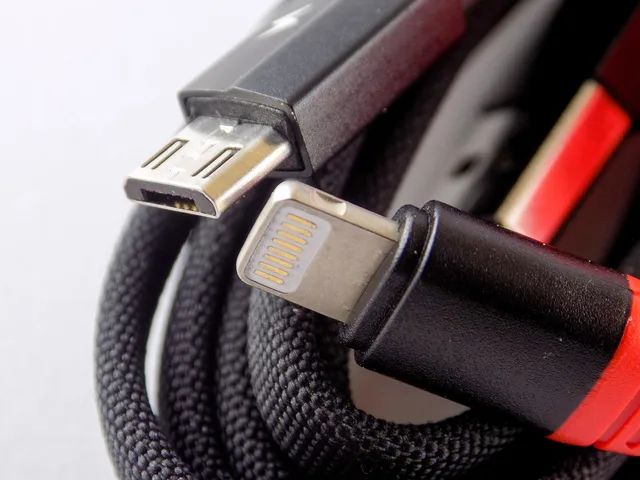
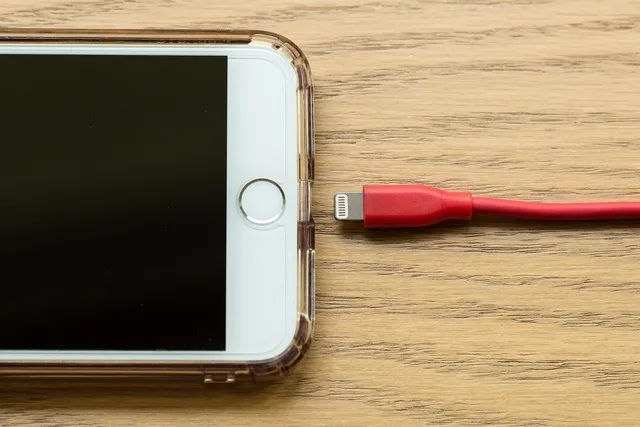
Check for moisture or temperature warnings. Examine the cable, charger, adapter, outlet, and port without inserting metal. Try one known-compatible component at a time. Some laptops, hubs, and cables provide too little power or no data capability.
Clean the charging port only after unplugging the phone and confirming there is no moisture warning. Use a soft, dry, lint-free cloth or a soft-bristled brush to remove loose lint. Do not use metal pins, compressed air, or liquids. If debris is packed in or the contacts look damaged, use qualified service.
If wireless charging fails, remove objects between the phone and pad, align the coils, and test without a thick or metal case. Stop if the equipment overheats, smells, arcs, or has exposed conductors.
No cellular service
Confirm that airplane mode is off and the line is enabled. Move to another known-covered location. Check for a carrier outage using another connection. If traveling, review roaming settings and plan coverage. A recently moved SIM or eSIM may require carrier activation.
Avoid resetting all network settings until you understand what it removes, which may include saved Wi-Fi networks, Bluetooth relationships, or other configurations. What each of those relationships actually does is set out in cellular, Wi-Fi, Bluetooth, NFC, and GPS compared.
Wi-Fi connects but internet does not work
Test another site and another device on the same network, and if every device fails, focus on the router or internet service. University helpdesks publish the same router first moves.
Wi-Fi fails: router or phone?
Do other devices on the network fail too?
focus on router or internet service
forget and rejoin network on the phone
The New School's home Wi-Fi troubleshooting steps start with unplugging the router for a minute, moving closer, and replacing aging equipment. They fall back to a wired connection when radio conditions stay poor.
If only one phone fails, forget and rejoin the network after confirming the password. Disable a recently added VPN or filtering profile only if you understand its purpose and organizational requirements.
A Wi-Fi symbol proves a local connection, not a working internet path. Separating the router, the provider link, and name resolution is the method in home networking basics.
Bluetooth will not connect
Charge both devices, place them nearby, and confirm that the accessory is in pairing mode. Check whether it is connected to another phone or computer. Remove the old pairing from both sides only after noting any permissions or settings, then pair again.
For cars and shared devices, delete old owners' records and avoid syncing contacts or messages unless needed.
App crashes or refuses to open
Check whether the service itself is down and whether the account works in another supported channel. Force-close only the affected app, reopen it, then install updates. Confirm free storage and permissions. Reinstall only after finding out whether the app holds unsynchronized local data.
When a forced restart is appropriate
When a phone ignores touch and its normal controls, a forced restart with the hardware buttons usually recovers it without erasing data. The common iPhone and Android sequences are above. Button sequences differ between models and between generations of the same line, so check the maker's support page if those steps do not work.
If the screen stays dark, charge the phone on known-good equipment for half an hour before treating it as failed.
When to reset
A factory reset erases local information and settings. Do it only after backups, credentials, second-factor access, and less destructive tests are complete. A backup you have restored from makes that step safe, which is the point of how to build a personal backup system.
A reset is most informative when you test the phone before restoring every app and setting. If the fault returns only after restoration, software or configuration may be involved.
Seek service sooner when the phone cannot remain powered, storage is failing, the screen is lifting, liquid reached the device, or account protections prevent a safe reset.
Common questions
Does restarting delete my data?
An ordinary or supported forced restart should not erase stored data. A factory reset does. Read the exact command before confirming it.
Why does only one app fail on Wi-Fi?
The app, its service, account, permissions, domain filtering, VPN, or local network policy may be involved. Test another network and the service status before resetting the phone.
Should I clean a charging port with a pin?
No. Metal can damage contacts or create a short. Follow the manufacturer's cleaning instructions or use qualified service.
Can a weak signal drain the battery?
Yes. A phone may use more energy maintaining or searching for a connection, though apps, screen use, transfers, and battery condition can also contribute.