Guides
USB-C Cable Types and Speeds: How to Read Wattage, Data Rate, and Certification Labels
USB-C cables look identical but differ in charging watts, data speed, video support, and USB-IF certification. Here is how to read the box and pick for your port.
What to take away
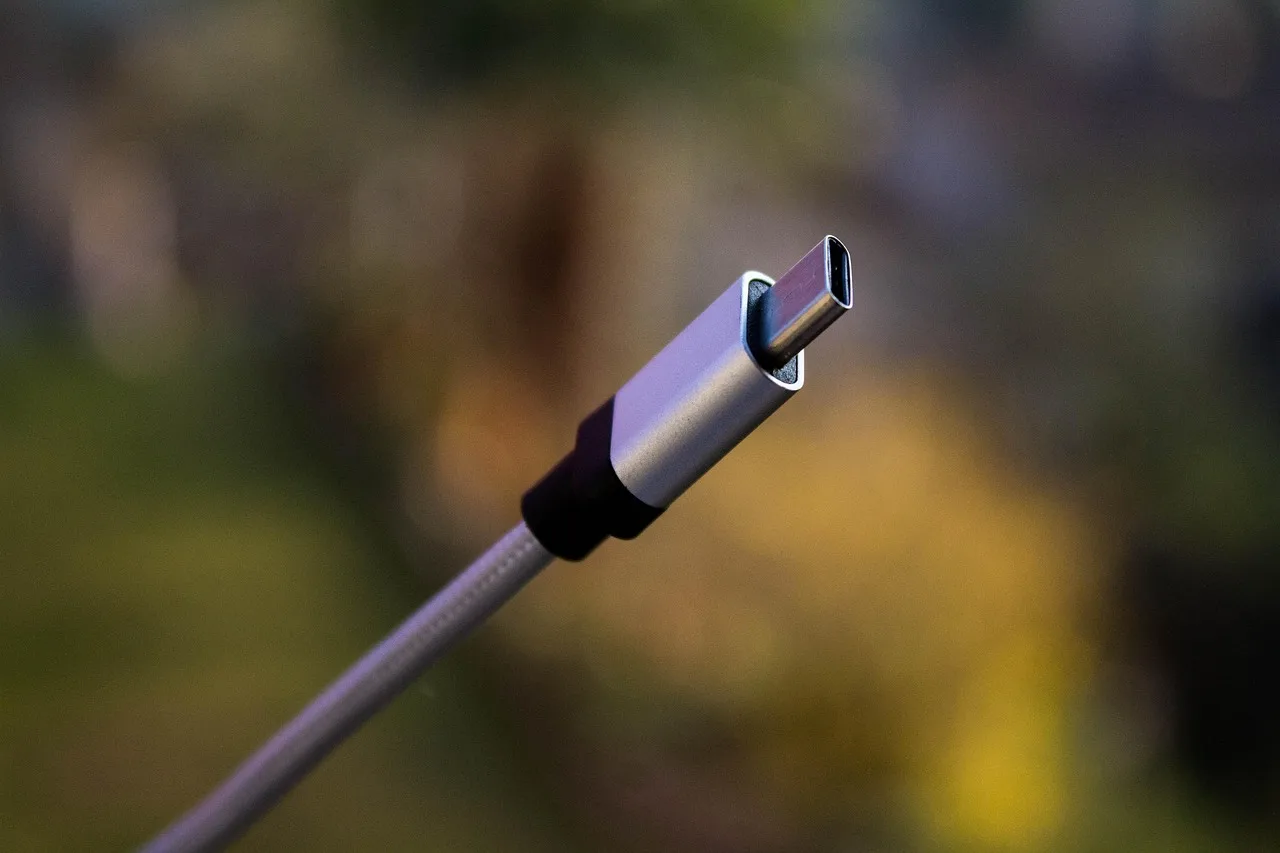
- The USB-C plug shape is identical on every cable. The wire inside decides charging watts, data speed and video support.
- Most cables sold in US stores are USB 2.0 at 480 Mbps and 60 W. That is fine for a mouse, wrong for a laptop dock.
- USB-IF certified cables carry a logo and a test ID. Uncertified cables may carry a wattage claim with no test behind it.
- Thunderbolt 3 and 4 cables are USB-C cables that passed an extra Intel test. They cost more and do more.
- No cable fixes a port that lacks the right mode. Buy for the port, not the plug.
The connector is standardized. The cable is not. That gap is why two identical-looking cords behave differently, and why the box label matters more than the shape of the tip.
The criteria that matter
Four numbers separate one USB-C cable from another. Charging wattage sets how fast a phone or laptop refills. Data rate sets how long a file copy takes. Video support decides whether a monitor lights up. Certification tells you a lab checked the first three.
USB-C criteria to check
Charging
- What to check
- Wattage
- Why it matters
- 60 W limits 140 W laptop
- Example values
- 60/100/240 W
Data rate
- What to check
- Gbps figure
- Why it matters
- 50 GB backup speed
- Example values
- 480 Mbps-40 Gbps
Video
- What to check
- DP Alt Mode
- Why it matters
- Monitor stays dark
- Example values
- Thunderbolt
Certification
- What to check
- USB-IF logo
- Why it matters
- Lab compliance test
- Example values
- Test ID
| Criterion | What to check on the box | Why it matters |
|---|---|---|
| Charging | Wattage, usually 60 W or 100 W or 240 W | A 60 W cable will not run a 140 W laptop charger at full speed |
| Data rate | 480 Mbps, 5 Gbps, 10 Gbps, 20 Gbps, 40 Gbps | A 50 GB backup takes about 15 minutes at 480 Mbps and under a minute at 40 Gbps |
| Video | DisplayPort Alt Mode, or Thunderbolt | Without it, a monitor stays dark no matter the adapter |
| Certification | USB-IF logo and test ID | Shows the cable passed compliance testing |
A fifth factor sits outside the cable: the port it plugs into. A 40 Gbps cable in a 5 Gbps port runs at 5 Gbps. The cable is a ceiling, never a floor.
Option by option
USB 2.0 charge cable. Usually 480 Mbps and 60 W, sometimes 100 W. This is the cable in the box with most phones and the loose one at the checkout counter. Expect to pay $8 to $15 at US retailers for a 6-foot name-brand version, less for generics.
USB-C cable tiers by price
USB 2.0
- Data rate
- 480 Mbps
- Power
- 60-100 W
- Video
- No
- US price
- $8-$15
USB 3.2
- Data rate
- 5-10 Gbps
- Power
- 100 W
- Video
- Sometimes
- US price
- $15-$30
USB4
- Data rate
- 20-40 Gbps
- Power
- 100-240 W
- Video
- Yes
- US price
- $25-$50
Thunderbolt
- Data rate
- 40 Gbps
- Power
- Up to 240 W
- Video
- Yes
- US price
- $30-$70+
USB 3.2 Gen 1 or Gen 2 data cable. Rated 5 Gbps or 10 Gbps, typically 100 W. These are the workhorse cables for external SSDs and laptop docks. Prices run $15 to $30. The label may read "USB 3.2" with a generation number that hides which speed you get, so look for the Gbps figure instead.
USB4 cable. 20 Gbps or 40 Gbps, 100 W to 240 W, video support included. The USB4 standard folded Thunderbolt 3 into the main spec, so these cables cover most modern laptops. Expect $25 to $50.
Thunderbolt 3 or 4 cable. 40 Gbps, up to 240 W on Thunderbolt 4, full video and PCIe tunneling for docks and external GPUs. Intel certifies each one. Prices start near $30 and climb past $70 for long active versions.
Charging-only cable. No data pair at all, or a very thin one. Cheap, common in promotional bundles, useless for a drive. Test one by plugging in a phone and watching whether the computer sees it.
For background on how the connector and its modes were defined, the Wikipedia overview of USB-C covers the labeling conventions and the standards behind them. The broader USB hardware entry explains how USB 3.2 and USB4 relate to cable performance.
Where each one wins
A USB 2.0 cable is right for a bedside charger, a car, or a keyboard. You lose nothing because those devices never move data fast.
A USB 3.2 cable is right for a portable SSD, a phone backup, or a monitor with a built-in hub. It is the best value tier for most desks.
A USB4 or Thunderbolt cable is right for a laptop dock, an external GPU enclosure, or a 4K monitor at 60 Hz. If you paid for a Thunderbolt port, a $10 cable wastes it.
A charging-only cable is right when the only job is power and the price is near zero. Keep it labeled so it does not migrate into your travel bag.
If you are already sorting out which port does what on a machine, the guide to turning on accessibility features walks through settings changes that survive a cable swap and a restart.
What none of them solve
No cable adds a mode the port does not have. A USB-C port without DisplayPort Alt Mode will not drive a monitor through any cable, at any price. Check the laptop spec sheet before buying.
No cable reliably exceeds its rating over distance. Passive 40 Gbps cables are short, often under a meter. Longer runs need active cables, which cost more and can run warm.
Certification is voluntary. A cable without the USB-IF mark may still work, and a cable with a printed wattage may never have been tested. The mark is evidence, not proof of quality.
Finally, cable claims do not cover the charger. A 100 W cable paired with a 30 W brick still delivers 30 W. Match the whole chain, then buy.
A cable is a pipe. The charger sets the pressure and the port sets the width. Buying a wider pipe does not widen the port.