Guides
Laptop basics: processors, storage, ports, and what actually matters
Laptop basics explained through processors, memory, storage, displays, ports, batteries, operating systems, upgrades, repairs, and practical buying choices.
Laptop basics: what to take away
- A laptop packages a personal computer, display, keyboard, pointing device, battery, and networking into one portable body.
- Processor, memory, storage, graphics, cooling, and software support must fit the intended workload together.
- A familiar connector shape does not guarantee the same charging, data, or video capability.
- Battery runtime, repair options, keyboard comfort, and screen quality can matter more than peak specifications.
- Backups and account recovery protect the work on a laptop; a warranty mainly addresses covered hardware faults.
A laptop trades some modularity and cooling room for portability. That compromise is useful only when the machine fits the work, travel pattern, accessories, and expected ownership period.
This guide explains durable concepts across Windows, macOS, ChromeOS, and Linux. Exact menus, update terms, ports, and repair procedures differ by model and software release.
The parts that determine performance
Processor
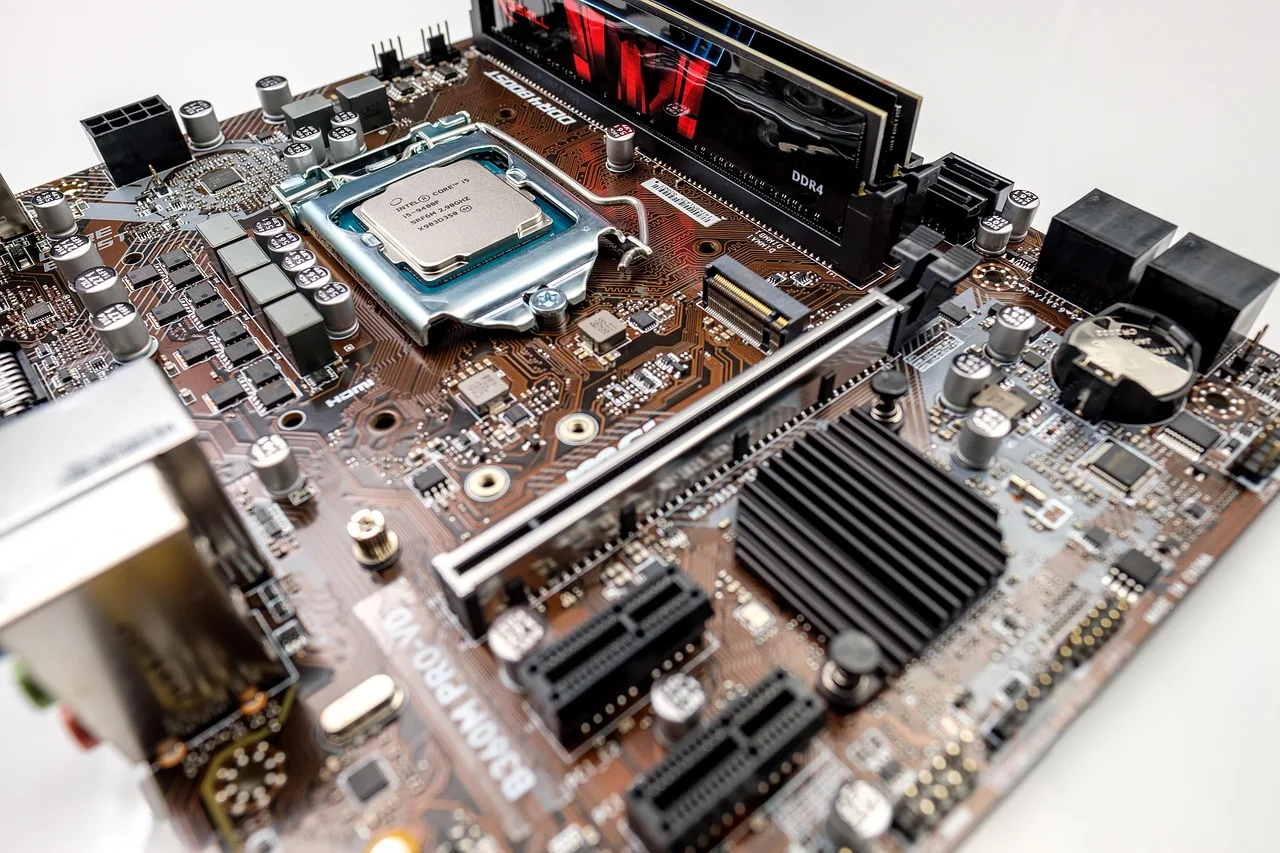
The central processor executes general instructions. Consumer laptops run on one of two instruction sets: x86, the family used by Intel Core and AMD Ryzen chips, and Arm, the family used by Apple silicon and Qualcomm Snapdragon processors. x86 keeps the widest compatibility with older Windows software, while Arm designs tend to favor efficiency and battery life and run software through native builds or translation. Model names can hide differences in generation, core count and core type, power target, and sustained speed. A fast chip in a thin chassis may slow under prolonged heat, while a modest chip can feel responsive for browsing and writing. Compare the generation and the sustained power the chassis can hold, not just the brand.
Memory
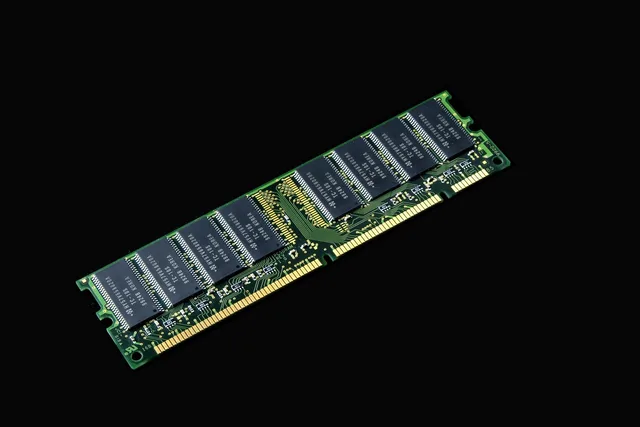
Random-access memory holds active programs and data. Too little memory causes more swapping to storage and more frequent reloading. Laptops use low-power memory: LPDDR types are usually soldered to the main board, while DDR modules can sometimes be removed and replaced. Some laptops permit memory upgrades; others have none. Buy enough for the expected life of a non-upgradable machine.
Storage
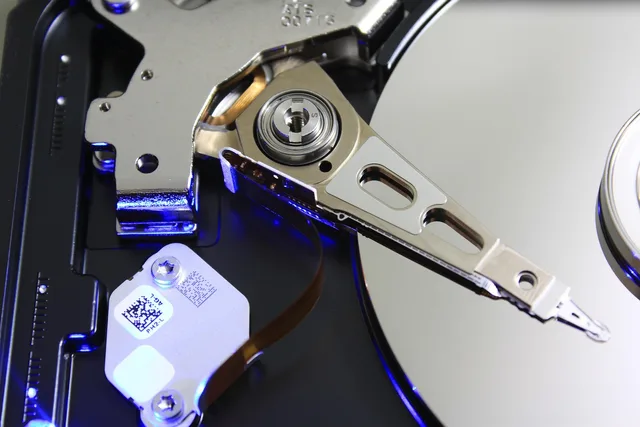
Solid-state storage holds the operating system, apps, and files after shutdown. A solid-state drive has no moving parts, so it reads data far faster and tolerates bumps that would damage a spinning disk. Solid-state storage arrives in a few forms: an M.2 stick using the PCIe bus and the NVMe protocol, a larger 2.5-inch drive on SATA, or eMMC memory soldered to the board in budget models. SATA and eMMC are noticeably slower than NVMe. Capacity and speed both matter, but free space matters too.
A nearly full drive can interfere with updates and temporary work. Check whether the drive is replaceable and whether cloud files are also available offline. For a soldered drive, size it for the operating system, applications, updates, and the files you keep locally, not only the files you have today. Whether an online-only file counts as a local copy is settled in cloud storage basics.
Graphics
Integrated graphics share system resources and suit many everyday tasks. Separate graphics hardware can help games, 3D work, engineering, and some media applications, but adds cost, heat, power demand, and weight. Those tradeoffs are what separate a gaming model from a mobile workstation in laptop types compared. Confirm software requirements rather than buying from the graphics name alone.
Cooling
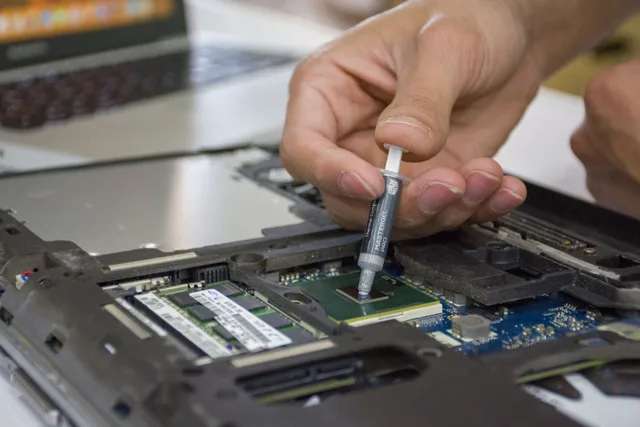
Fans, vents, heat pipes, chassis materials, and firmware control heat. Performance reviews should test sustained workloads, not only brief bursts. Keep vents clear and use the computer on a firm surface.
What is integrated
A conventional laptop combines the display in the lid with a keyboard and pointing device in the base. The laptop overview on Wikipedia describes this common clamshell form and covers internal components, storage, ports, battery power, cooling, accessories, and specialized designs. That inventory is useful because one purchase replaces several separate desktop parts.
Integrated design has consequences. A broken screen cable, worn keyboard, failed battery, or damaged port may require opening a densely packed machine. Before buying, check service documentation, parts availability, warranty exclusions, and whether storage or memory can be replaced.
Display choices
Compare more than diagonal size:
| Display factor | Why it matters |
|---|---|
| resolution | controls workspace and detail, subject to scaling |
| brightness | affects readability in bright rooms and outdoors |
| surface finish | glossy surfaces reflect more; matte surfaces diffuse reflections |
| color capability | matters for photo, video, and design work |
| refresh rate | can improve motion, with possible power cost |
| touch and pen | useful only if software and posture suit them |
| aspect ratio | changes vertical workspace and overall footprint |
Test text at a comfortable scaling setting. A high-resolution panel is not helpful if the interface becomes painfully small or the battery penalty outweighs the benefit.
Ports and wireless connections
List every device you connect: charger, monitor, storage, mouse, headset, camera card, network cable, security key, and dock. Then map each to a port or tested adapter.
Common laptop ports and what they carry:
- USB-C, the small reversible connector that can handle data, video, and charging.
- USB-A, the older rectangular connector still used by many mice, keyboards, and flash drives.
- HDMI, the usual cable for monitors, projectors, and TVs.
- DisplayPort, often carried over USB-C or Thunderbolt, for higher-resolution monitors.
- Thunderbolt, an Intel standard that runs over USB-C and adds high-speed data and display output.
- Ethernet, the RJ-45 wired network port, now often absent and replaced by an adapter.
- An SD card slot, for camera cards and removable storage.
Not every laptop has every port, and a USB-C port may support only part of what this list describes.
USB-C describes a connector, not a single feature set. One port may charge the laptop, carry display output, and transfer high-speed data, while another similar-looking port may do less. The faster data standards, USB4 and Thunderbolt, travel over the same connector. Read the port specification and supported power level. Check whether the charger can supply enough power under load. Charging over USB-C follows the USB Power Delivery standard, which negotiates that power level between charger and laptop, so the charger's rating must match what the model needs.
Wireless capability also varies by generation and antenna design. A laptop with Wi-Fi 6 or Wi-Fi 7 still connects to an older router, but only at the older router's speed, and Bluetooth versions differ in audio and accessory support. Newer Wi-Fi or Bluetooth labels do not improve an old router or accessory automatically. Compatibility must exist at both ends. What the router contributes to that pairing is covered in home networking basics.
Battery and power
Advertised runtime comes from a defined test, not your personal workload. Screen brightness, video calls, games, compilation, radio conditions, attached devices, and background work change demand. Battery capacity also falls with age and heat exposure.
For a travel machine, compare tested runtime, charger size, supported charging standards, replacement cost, and whether a power bank can deliver the required profile. Never block vents or use damaged power equipment.
Operating system and support
The operating system controls hardware, applications, updates, security, files, and user accounts. Before buying, confirm:
- That the applications you depend on run on that platform, or have a supported replacement.
- That your printer, scanner, dock, and specialty peripherals have drivers or certified support.
- How long the maker promises security updates and operating system upgrades for that model.
- Whether account requirements, such as a platform sign-in, fit how you work.
- Whether local service, spare parts, and battery replacement are realistically available.
Operating system checks
- Required apps support platform
- Devices have current drivers
- Supported OS releases period
- Management or exam software permits
- Accessibility tools meet needs
An inexpensive computer can become costly if it requires software replacement, a new dock, or a remote-work exception. Confirming each of those against the machine that actually arrives is what the acceptance tests in how to set up a new laptop are for.
A needs-first buying worksheet
Write the heaviest recurring task, largest local data set, longest unplugged session, most demanding peripheral, and required ownership period. Add physical constraints such as bag size, lifting comfort, desk depth, and keyboard reach.
Needs-first buying worksheet
- Heaviest recurring task
- Largest local data set
- Longest unplugged session
- Most demanding peripheral
- Required ownership period
- Physical constraints and bag size
Then set minimums and test them. Open the lid one-handed if that matters. Type for several minutes. Check glare, fan sound, webcam framing, speakers, port spacing, and charger bulk. Specifications screen out poor matches; hands-on use exposes daily friction. When two machines look equal on paper, the order that matters most in daily use is keyboard and screen comfort, then battery runtime, then memory and storage headroom, with the processor tier last.
Ownership plan
On day one, record the serial number, warranty, purchase proof, recovery key location, backup method, and included charger rating. Keep software current, verify backups, inspect physical damage, and clean only by the manufacturer's method. Each of those has its own interval in the laptop upkeep, backup, and security checklist.
Before repair or resale, protect data and remove accounts using platform instructions. A laptop is both equipment and a container for years of personal records.
Common questions
Is a notebook different from a laptop?
In current American usage, the terms are generally interchangeable. Sellers may use either word for marketing.
Is more processor speed always better?
No. Architecture, power limits, cooling, workload, memory, storage, and software all affect real performance.
Can every USB-C laptop use the same charger?
No. Connector fit does not prove compatible voltage, power delivery, cable rating, or manufacturer support.
Should I buy extra memory or storage first?
Choose based on the workload and upgrade options. Memory helps active work; storage holds files and apps. Neither substitutes for the other.
In this guide
- Setting up a new laptop without dragging old problems forwardNew laptop setup guide covering inspection, updates, accounts, encryption, recovery, file transfer, ports, backups, privacy, and acceptance testing.
- Laptop types compared: ultraportable, mainstream, gaming, and workstationLaptop types compared by portability, cooling, graphics, repair, battery, input, price, and workload, from ultraportables to mobile workstations.
- Laptop upkeep checklist for backups, updates, storage, accounts, and battery careA laptop upkeep checklist covering weekly checks, backup audits, updates, storage, accounts, encryption, battery and physical care, plus travel, repair, and resale.
- Common laptop problems: fix slowdowns and crashesA practical guide to common laptop problems, with named Windows and macOS tools for slowdowns, startup faults, battery drain, heat, Wi-Fi, and crashes.
- Laptop replacement case: transfer, setup, retirementA representative laptop replacement case in steps: needs check, clean setup, selective transfer, backup test, secure erase, donation, and records.