Guides
Software updates, reviewed against real use
Software updates explained through patches, upgrades, firmware, automatic installs, restarts, support periods, backups, and safe update habits.
What to take away
- Updates can correct security flaws, fix defects, improve compatibility, or add features.
- Operating systems, apps, browsers, firmware, accessories, and security tools can have separate update paths.
- Backups, free storage, reliable power, and a trusted connection reduce avoidable installation trouble.
- An available update may reach compatible devices in stages, so two similar devices may not receive it together.
- A device that no longer receives security fixes needs a retirement, replacement, or isolation decision.
A software update replaces or adds code, data, configuration, or firmware. The label on the screen may say patch, update, upgrade, security response, driver, definition, or system component. Those terms overlap, but they do not always describe the same scope or urgency.
What an update can change
An update may address one or several jobs:
What Updates Change
Update purpose
- Security fix
- Closes known weakness
- Bug fix
- Corrects faulty behavior
- Compatibility change
- Works with new services
- Feature release
- Adds or changes functions
- Firmware update
- Changes low-level device code
- Definition update
- Refreshes recognition data
Typical effect
- Security fix
- Often little visible change
- Bug fix
- Fewer crashes or errors
- Compatibility change
- Restored or added connections
- Feature release
- New controls or workflow
- Firmware update
- Altered startup, radio, battery
- Definition update
- Newer threat detection
What user notices
- Security fix
- Bug fix
- Compatibility change
- Feature release
- Firmware update
- Definition update
| Update purpose | Typical effect | What the user may notice |
|---|---|---|
| Security fix | closes a known weakness | often little visible change |
| Bug fix | corrects faulty behavior | fewer crashes or errors |
| Compatibility change | works with new services, files, or hardware | restored or added connections |
| Feature release | adds or changes functions | new controls or workflow |
| Firmware update | changes low-level device code | altered startup, radio, battery, or accessory behavior |
| Definition update | refreshes recognition data | newer threat or content detection |
A release can contain several categories at once. Read the release notes when the consequence matters, but do not assume a short note means the update has no security value. Reading them before a router firmware release is an explicit item on the home network maintenance and security checklist.
The update chain
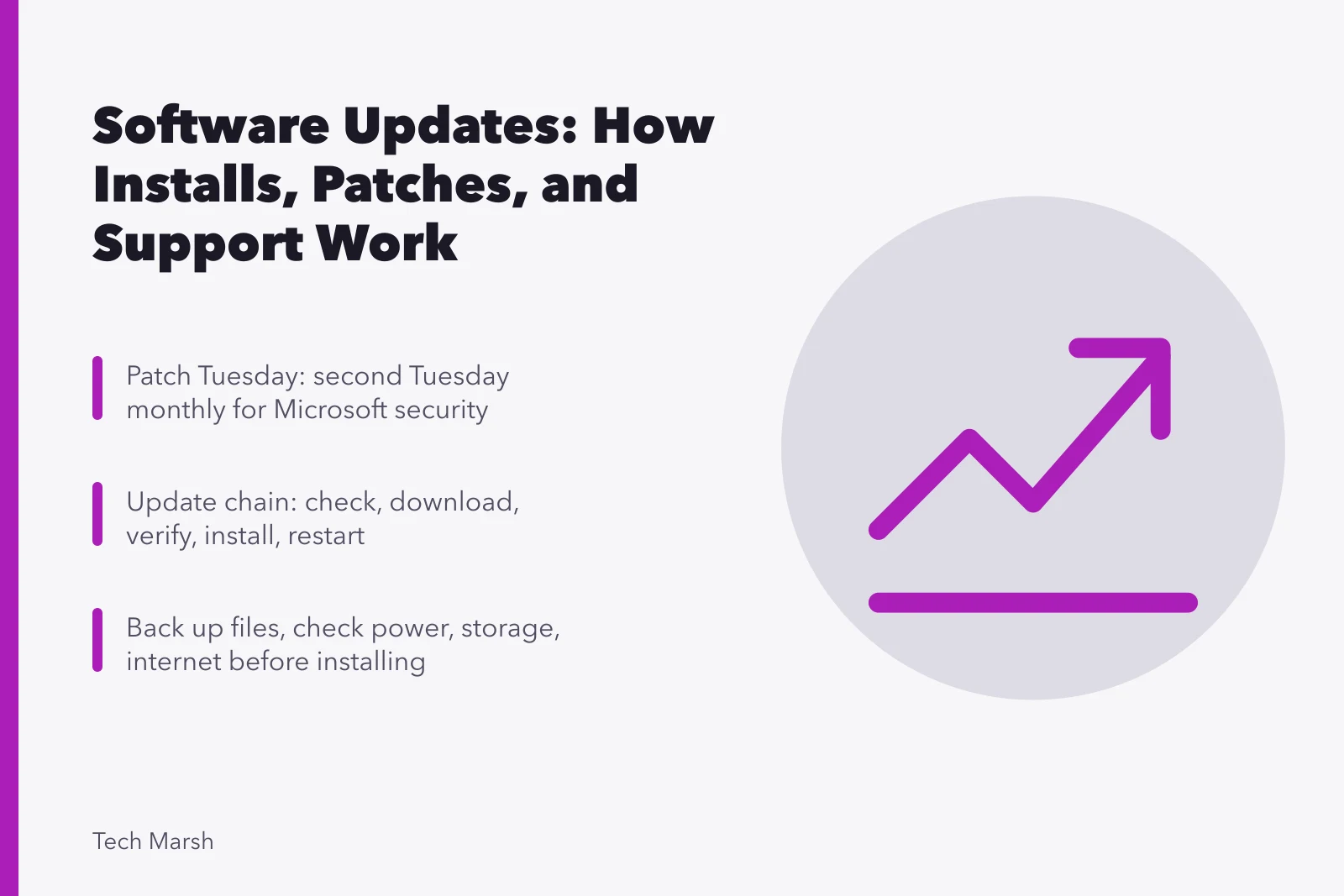
The publisher prepares and signs a release. A device or app checks an approved service, determines compatibility, downloads a package, verifies it, installs it, and may restart. Some systems keep a previous copy or a recovery partition. Others have little room for reversal.
How an Update Reaches You
- Publisher prepares and signs release
- Device checks approved service
- Compatibility determined
- Package downloaded
- Package verified
- Installed, may restart
This chain explains why an update can fail before installation, during installation, or after startup. A download error is different from a compatibility fault. A frozen progress display is different from a device that completed installation but now has a broken app.
NIST describes patch management as identifying, prioritizing, acquiring, installing, and verifying patches, updates, and upgrades. Its current patch-management planning guide treats that work as preventive maintenance. A household does not need enterprise tooling, but the sequence is still useful: know what needs an update, decide what comes first, use the official channel, and confirm the result.
Automatic and manual updates
Automatic updates remove much of the delay between release and installation. They work best when the device has enough storage, regular internet access, and time to restart.
Publishers also batch their fixes. On Patch Tuesday, the second Tuesday of each month, Microsoft ships its scheduled security updates, and other large vendors follow the same rhythm.
Critical out-of-band fixes still appear off schedule when a flaw cannot wait. Manual checks matter because automatic delivery can pause after an error, a full drive, a disabled setting, or the end of product support.
Use official update controls in the operating system, app store, application, router, or accessory app. Treat unsolicited messages that demand a download from an unfamiliar website as suspicious.
An update alert should lead to the product's own controls, not an attachment or copied installer. An urgent-looking message is one of the device and account security warning signs.
Before pressing install
For a routine update:
Before Pressing Install
- Save work and close tasks
- Confirm important files are backed up
- Check power, battery, storage, internet
- Read compatibility or restart warning
- Record current version if important
- Use official update mechanism
- Save work and close tasks that cannot be interrupted.
- Confirm that important files are backed up and recoverable.
- Check power, battery charge, storage, and internet stability.
- Read any compatibility or restart warning.
- Record the current version if the update affects important work.
- Use the official update mechanism.
For a major operating-system upgrade, also check application support, peripheral drivers, account credentials, disk encryption recovery information, and the vendor's rollback limits. Where that recovery key is kept is a standing item on the laptop upkeep, backup, and security checklist.
After installation
Confirm the reported version and update status. Open the functions that matter most, such as networking, printing, camera access, audio, accessibility tools, backups, and business applications. When an access feature is the thing that broke, the safe recovery order is in accessibility feature problems and fixes. Do not judge success only by reaching the home screen.
After Installation Checks
- Confirm reported version and status
- Test networking and printing
- Test camera access and audio
- Test accessibility tools and backups
- Test business applications
- Record update name, time, version, error
If a problem appears, write down the update name, time, version, exact error, and what changed. That record makes official support instructions easier to follow. Avoid deleting system folders or installing unofficial repair utilities before you understand the fault.
Support has an end date
Updates do not continue forever. The operating system, device maker, mobile carrier, app publisher, or component vendor may set different support periods. A working device can still be unsafe for sensitive use if important software no longer receives security fixes.
Before buying a connected product, look for a stated support period and a clear update method. Tracking those dates for products already in the home is part of the smart home maintenance checklist. Before retiring one, back up needed data, sign out where appropriate, remove accounts, reset it according to current instructions, and use a responsible reuse or recycling route.
Common questions
Is every update urgent?
No. Urgency depends on security exposure, active exploitation, device role, and the publisher's notice. Security fixes deserve prompt review.
Why did another device get the update first?
Publishers may stage releases by model, region, carrier, configuration, or measured reliability.
Is firmware the same as an app update?
No. Firmware runs closer to hardware and often uses a device-specific installation path.
Should I update from a pop-up advertisement?
No. Open the product's official settings, app store, or publisher channel and check there.