Guides
Part of Cloud storage basics: how sync, sharing, and recovery work
Personal Backup System Planning: Copies, Tests, and Care
A personal backup system plan covers data inventory, recovery targets, independent local and remote copies, encryption, restore tests, and regular maintenance.
What to take away
- Inventory data and recovery priorities before buying capacity.
- Use independent copies that do not share one account, device, location, or deletion path.
- Encrypt sensitive portable media and protect recovery credentials.
- Automate routine backups but inspect failures and capacity.
- A restore test is the proof that a backup works.
A personal backup system should answer what must be restored, how recent it must be, and how quickly it is needed. Family photos may tolerate a slower recovery than current tax records or a student's project due tomorrow.
Step 1: inventory data
List devices, accounts, apps, folders, photo libraries, messages, downloads, external media, and records stored only inside apps. Mark owner, size, sensitivity, change rate, and importance.
Data inventory fields
- Devices and accounts
- Apps and folders
- Photo libraries and messages
- Downloads and external media
- Records stored only inside apps
- Mark owner, size, sensitivity, change rate
Do not count a thumbnail or synchronized placeholder as a confirmed local copy. Export small samples from specialist apps to learn what a recoverable file looks like.
Step 2: set recovery targets
For each category, choose:
- recovery point
- how much recent work can be lost;
- recovery time
- how long restoration may take;
- retention
- how far back versions must go; and
- proof
- the test that confirms success.
These targets determine schedule and media. A monthly photo archive cannot meet a one-day document recovery point. Backup software commonly mixes occasional full copies with incremental backups that record only what changed since the previous run, and a full recovery then needs the last full copy plus every increment after it, which is why retention settings deserve real thought.
Step 3: design independent copies
The data backup options paper by Paul Ruggiero and Matthew A. Heckathorn, published by CISA, describes the 3-2-1 approach: three copies including the primary, on two media types, with one copy offsite. It compares removable media, network-attached storage, and remote cloud storage, including security and availability tradeoffs.
3-2-1 backup design
Copy
- Primary
- Working computer
- Local backup
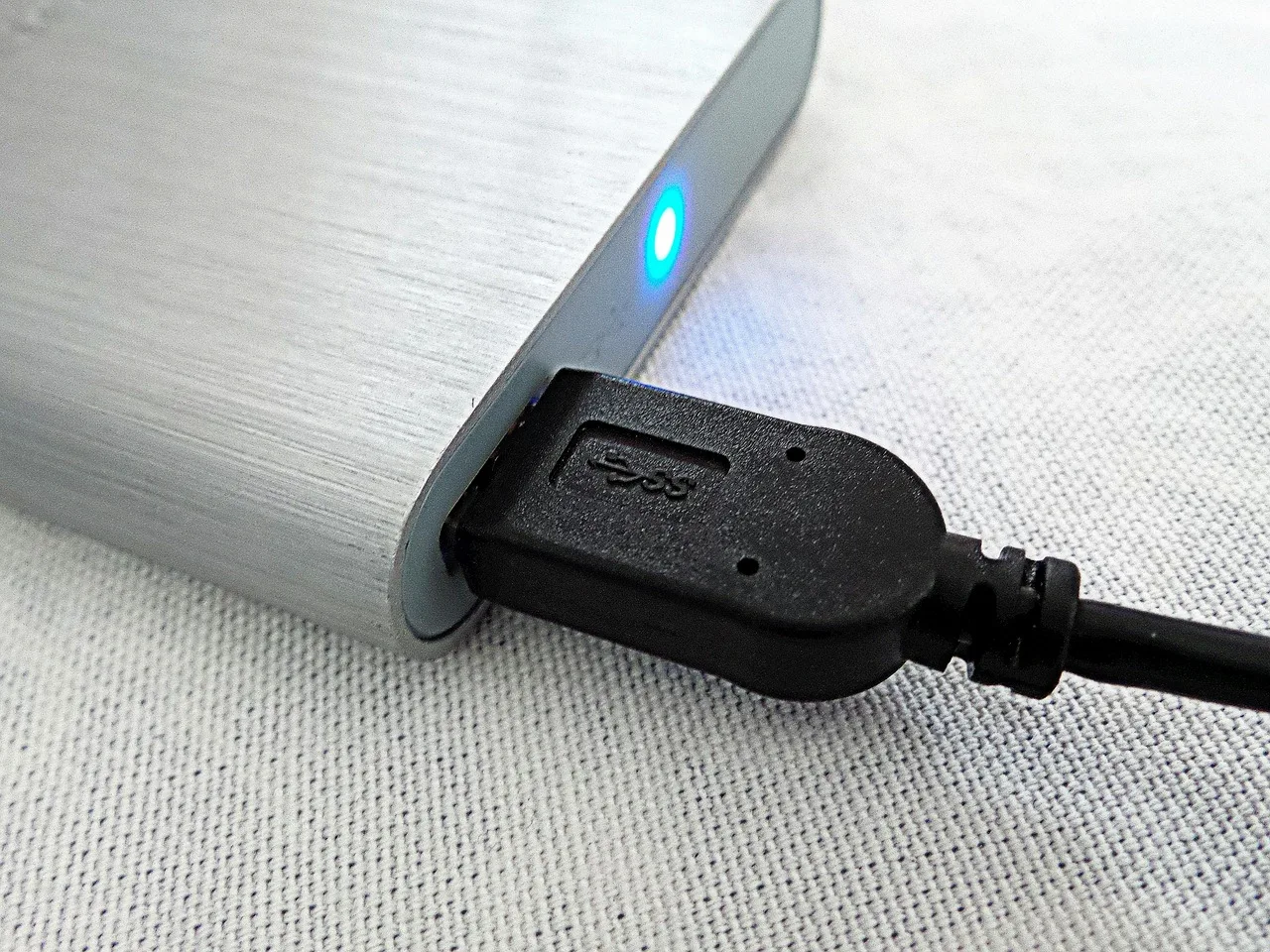
- Encrypted external drive
- Offsite
- Versioned cloud backup
- Media types
- Two different media
Location
- Primary
- Local backup
- Offsite
- Media types
For a household, one design might be the working computer, an encrypted external backup drive disconnected between runs, and a versioned cloud backup under a protected account. Adjust for data volume, budget, internet upload, and disaster risks.
Step 4: choose local media
Size the drive above current data so versions and growth fit. Check interface, power, operating-system support, file-system compatibility, warranty, and encryption. Label the drive with a neutral identifier and purchase date, not private contents.
Both major desktop systems include backup software for that drive. On a Mac, Time Machine automatically backs up files, including apps, music, photos, email and documents, to a USB drive or other external storage device. Apple advises a backup disk with at least twice the storage capacity of the Mac, so a Mac with 1TB of storage should ideally back up to at least 2TB, and the Time Machine disk should be used only for Time Machine backups. On Windows 10 and Windows 11, File History automatically saves copies of personal files and folders so they can be restored if something goes wrong.
Keep a portable drive away from heat, moisture, drops, magnets where relevant, and the same bag as the laptop. After a verified backup, disconnect it if offline protection matters; otherwise, keep it secured and monitor its status.
On a Mac, Apple notes that anyone who finds a lost or stolen drive can read it on another computer unless the data is encrypted, and that encrypting a disk converts it to the APFS format first, so Macs with older macOS versions that do not support APFS cannot read it.
Step 5: choose the remote copy
Compare encryption, multi-factor authentication, version retention, deleted-item recovery, device limits, export, support, geographic or regulatory needs, and account inheritance. What those service terms mean in practice is set out in cloud storage basics. Estimate the first upload and full restore time from actual upload and download rates.
Check the version window before trusting any service. Microsoft OneDrive, for example, lets you see and restore older versions of files of all types, but its file version history is retained for 30 days. That covers a bad edit noticed this week, not a file damaged months ago, so a longer recovery point needs a service or setting that keeps versions longer.
Cloud synchronization is not automatically cloud backup. Choose a product and configuration that retains recoverable versions when that is the requirement.
Step 6: configure accounts and keys
Use unique passwords and multi-factor authentication. Store recovery codes and encryption keys somewhere separate from the devices and accounts they protect. Make sure intended household members can find the recovery instructions without exposing the keys themselves. If a family needs emergency access, document a controlled process rather than sharing one password informally.
Step 7: run the first backup
Connect reliable power and networking. Start with the most important small categories, then large media. Watch for skipped files, sleeping computers, path limits, locked databases, and storage quotas.
Record start, finish, data size, exclusions, errors, and software version.
Step 8: test restore
Select files from several dates, folders, types, and sizes. Restore them to a new temporary folder. Open them in the required application and compare size or checksum where appropriate.
Also test recovery when the primary account session is absent. A backup that can be opened only from a lost laptop has a hidden dependency.
Step 9: maintain
Review failures weekly, capacity monthly, restore quarterly, and the whole design annually or after a major device, account, or household change. Include account access, sharing permissions, and recovery options in that review. Replace aging media before it fails and migrate old formats while compatible readers still exist.
Common questions
Is one external drive enough?
It is better than no copy, but theft, fire, failure, accidental overwrite, or malware may affect the computer and attached drive together.
Should the backup drive stay connected?
Continuous connection is convenient, but it can expose the copy to the same malware or power event. Use the risk model and product design to decide.
Must every file have the same schedule?
No. Match frequency and retention to value and change rate.
How often should I test restoration?
Quarterly is a practical household starting point, plus after software, media, account, or encryption changes.