Maintenance
Part of Getting accessible technology right the first time
Accessible technology checklist for selection, testing, and handover, 2027 edition
Accessible technology checklist for defining user needs, testing products, reviewing compatibility and privacy, and planning training, support, and replacement.
What to take away
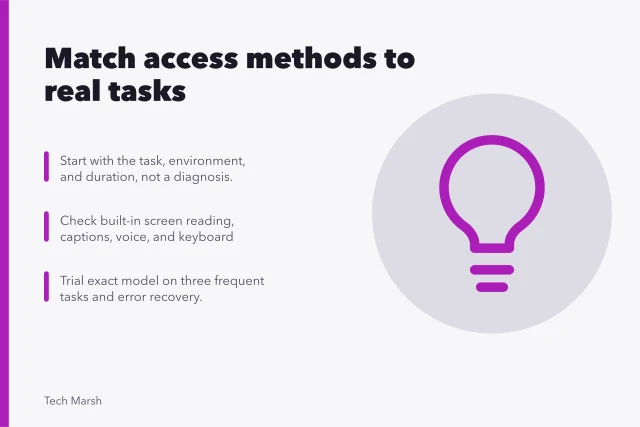
- Define the person's tasks and environment before comparing products.
- Treat vendor accessibility statements as a starting point and verify them with real workflows.
- Test setup, daily use, error recovery, restart, updates, and loss of connectivity.
- Include the user in selection and acceptance, with enough time to judge fatigue and fit.
- Plan training, repair, loaners, settings backup, and replacement before the tool becomes essential.
Use this checklist for a phone, computer, app, website, accessory, or specialized assistive device. The reasoning behind each section is in the accessible technology guide. Not every item applies to every purchase. Record "not applicable" with a reason rather than silently skipping a category.
1. Define the need
- The user describes the task in their own words.
- The task is specific enough to test from start to finish.
- The normal location, noise, light, posture, and connection are documented.
- Privacy, safety, and time requirements are recorded.
- Current successful methods and unwanted barriers are separated.
- The user's preferences and consent guide the process.
Avoid selecting a product from a diagnosis alone. Two people with similar medical descriptions can use different input, output, and communication methods.
2. Set acceptance tasks
- Three frequent tasks have clear success conditions.
- One difficult or infrequent task is included.
- The user can correct an error and leave an unwanted screen.
- The test includes sign-in and multi-factor authentication.
- The test uses representative files, apps, calls, and forms.
- Completion, accuracy, assistance, fatigue, and privacy are recorded.
For a website or service, W3C's Easy Checks for web accessibility covers titles, text alternatives, headings, contrast, resizing, keyboard access, forms, moving content, media alternatives, and basic structure. The page says these checks are an initial review, not a complete evaluation.
3. Review the product claim
- The accessibility statement names the exact version or model.
- Supported operating systems, browsers, accessories, and file types are listed.
- Known limitations are documented.
- Conformance reports are current and relevant to the purchased configuration.
- The vendor identifies an accessible support route.
- Marketing language is separated from testable behavior.
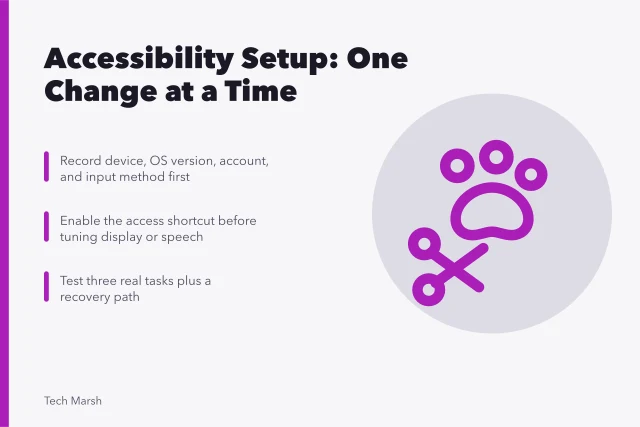
A conformance document can help identify areas to test. It does not replace hands-on use or guarantee that an integrated workflow will be accessible. Building that hands-on test around one changed control at a time is setting up accessibility features.
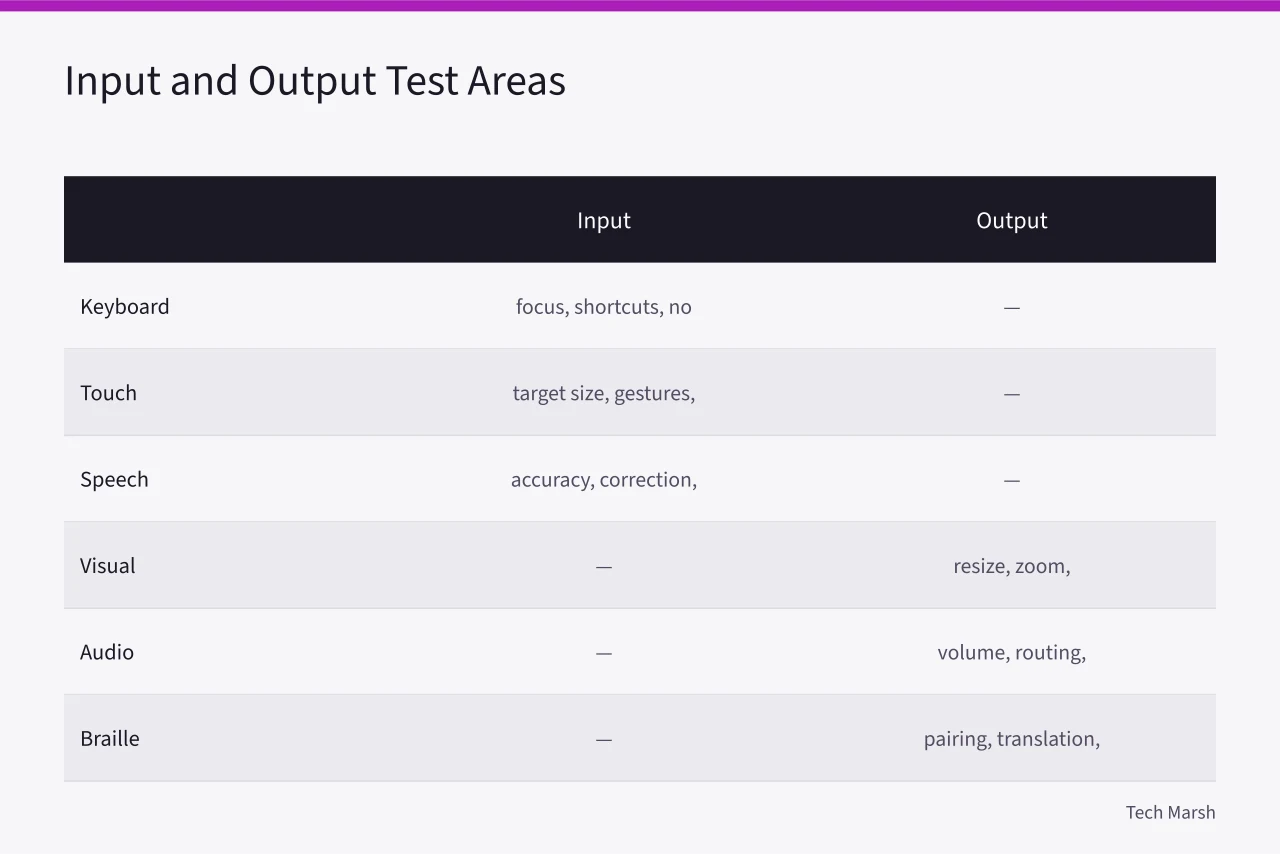
4. Test input and output
| Area | Checks |
|---|---|
| keyboard | logical focus, visible focus, shortcuts, no trapped control |
| touch | target size, gesture alternatives, timing, accidental activation |
| speech | accuracy, correction, noise, private use, offline limits |
| visual | text resize, zoom, contrast, reflow, pointer, reduced motion |
| audio | volume, routing, alerts, speech clarity, private listening |
| braille | pairing, translation, cursor routing, reconnect, charging |
| captions | accuracy, timing, speaker labels, sound cues, placement |
| switches | mapping, scan rate, mounting, rest position, escape path |
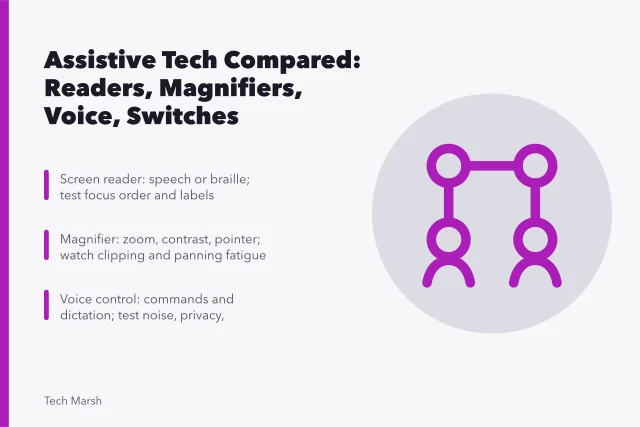
Test combinations the user needs. A screen reader and magnifier, for example, may each work alone but conflict in one app. What each tool changes, and where each one strains, is set out in assistive tools compared.
5. Check the full lifecycle
- Initial setup is accessible or a planned setup service is available.
- The user can sign in, restart, update, and shut down the system.
- Settings and profiles can be backed up or recorded.
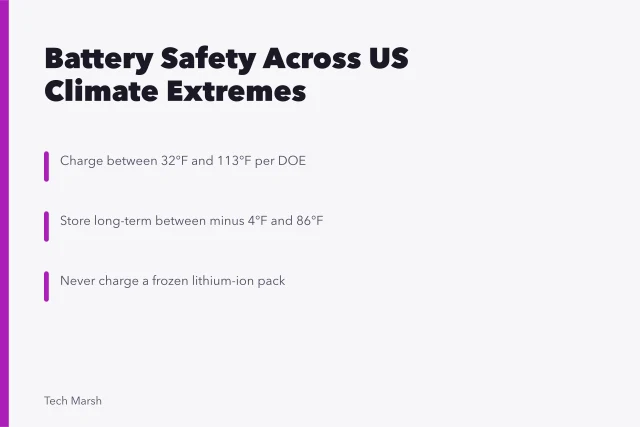
- Battery duration is measured with access features active.
- Cables, adapters, chargers, and mounts are identified.
- Repair time, warranty, return period, and loaner terms are known.
- A fallback method is ready for outage or repair.
Federal Section 508 guidance on buying accessible products and services tells covered federal buyers to identify applicable standards, include requirements, evaluate vendor responses, validate accessibility, and manage delivery. A household purchase is not a federal procurement, but the verify-before-acceptance principle is still practical.
6. Review privacy and control
- The user knows when audio, images, text, or location leave the device.
- Cloud and local processing are distinguished.
- Retention and deletion controls are reviewed.
- Caregiver, administrator, and remote-support permissions are explicit.
- Lock-screen previews and spoken private content are tested.
- Data collection not needed for the task is disabled when possible.
7. Plan training and handover
- Training uses the user's real tasks and preferred pace.
- Instructions are available in the user's chosen format.
- Shortcuts, profiles, device names, and support contacts are recorded.
- The user completes the acceptance tasks without prompting.
- A follow-up date is scheduled after regular use.
- Failed trial settings and unused pairings are removed.
Final decision record
Write a short decision note: chosen product and version, tested tasks, limits, required workarounds, user acceptance, support owner, fallback, and review date. This record matters when an update changes behavior or a replacement must be found quickly. A comparable scoring record for ordinary computers appears in laptop types compared.
Common questions
Must every box be checked yes?
No. Mark irrelevant items clearly and explain any accepted limitation or workaround.
Is a vendor accessibility report enough?
No. Verify the exact product in the actual workflow with the user.
How long should a trial last?
Long enough to test routine work, fatigue, charging, restart, and support. The right period varies by task and return policy.
Who should approve the final setup?
The user should have a central role, along with any employer, school, clinician, or specialist whose formal responsibilities apply.