Rules
Part of Laptop basics: processors, storage, ports, and what actually matters
Common laptop problems: fix slowdowns and crashes
A practical guide to common laptop problems, with named Windows and macOS tools for slowdowns, startup faults, battery drain, heat, Wi-Fi, and crashes.
What to take away
- Back up stable data and stop for battery, liquid, heat, smoke, or electrical danger.
- Define whether the fault affects one app, one account, one accessory, or the whole laptop.
- Use built-in status tools before cleaners, driver bundles, resets, or hardware changes.
- Test one change at a time and preserve exact error messages.
- A reset is not a substitute for diagnosing unsafe or failing hardware.
Common laptop problems are easier to fix when observations replace labels such as "slow" or "broken." Record the action, delay, error, system load, power state, network, and recent change. Knowing which part is being asked to do the work helps, and laptop basics covers processor, memory, storage, graphics, and cooling in turn.
If the case is swelling, the battery smells or smokes, a port sparks, liquid entered a powered machine, or the charger has exposed conductors, stop using it and seek qualified help.
Laptop is slow
Measure where the delay occurs: power-on, sign-in, app launch, web page, file copy, video call, or sustained processing. Open the platform's system monitor, the tool family that includes Task Manager and Activity Monitor, and look at processor, memory, storage, graphics, and network activity during the symptom.
Malware belongs on the suspect list when slowness comes with freezes, crashes, pop-up ads, or browser redirects. FTC guidance on detecting and removing malware names those symptoms.
FTC says update security software, run a scan, then change passwords and turn on two-factor authentication if anything was found. Old hardware may also not meet current needs; preserve files before any cleanup.
Common causes of slowdown
- Background update or backup
- Low free storage
- Too many startup programs
- One process using CPU or memory
- Thermal throttling from blocked cooling
- Malware or unwanted software
- Old or failing drive
- Hardware below app requirements
Restart, update, and test a clean workload. Disable one unnecessary startup item at a time rather than terminating unknown system services. Startup items, storage headroom, and update status all appear on the laptop upkeep, backup, and security checklist.
Laptop will not start
Separate no power from no display. No lights, sound, fan, or charging indicator suggests a power path problem. Activity with a black screen may involve brightness, display selection, the panel, graphics, memory, or startup software.
No power or no display?
Any lights, sound, fan, or charging indicator?
No -> power path problem
Yes -> check brightness, display, panel, graphics, memory, startup
Check the outlet with a safe known device. Inspect the correct charger and cable. Disconnect nonessential accessories. Follow the model's power-reset steps; for hardware checks, use the manufacturer's diagnostics or Apple Diagnostics on a Mac. If Windows powers on but cannot load, run Startup Repair from Windows Recovery Environment; on a Mac, use macOS Recovery for startup troubleshooting. Do not open the case while connected to power, and do not substitute a charger merely because its plug fits.
Battery drains quickly
Compare battery use under the same brightness, apps, network, and performance mode. Video calls, games, external drives, high refresh rates, poor Wi-Fi, and background synchronization can change demand.
Battery drain pattern
Did runtime fall gradually over years?
chemical aging likely
look for update, app, peripheral, or fault
On Windows, run powercfg /batteryreport in Command Prompt to create a report of battery use and capacity; on macOS, check Battery Health in System Settings > Battery. The battery report explains what to review alongside health status. If runtime fell gradually over years, chemical aging may be the main factor. If it changed overnight, look for an update, app, peripheral, or fault. Swelling, sudden shutdowns, or severe heat require service.
Laptop runs hot or the fan stays loud
Place it on a hard surface and clear external vents. Check system load. A fan responding to compilation or rendering may be normal; a fan running hard at idle needs investigation.
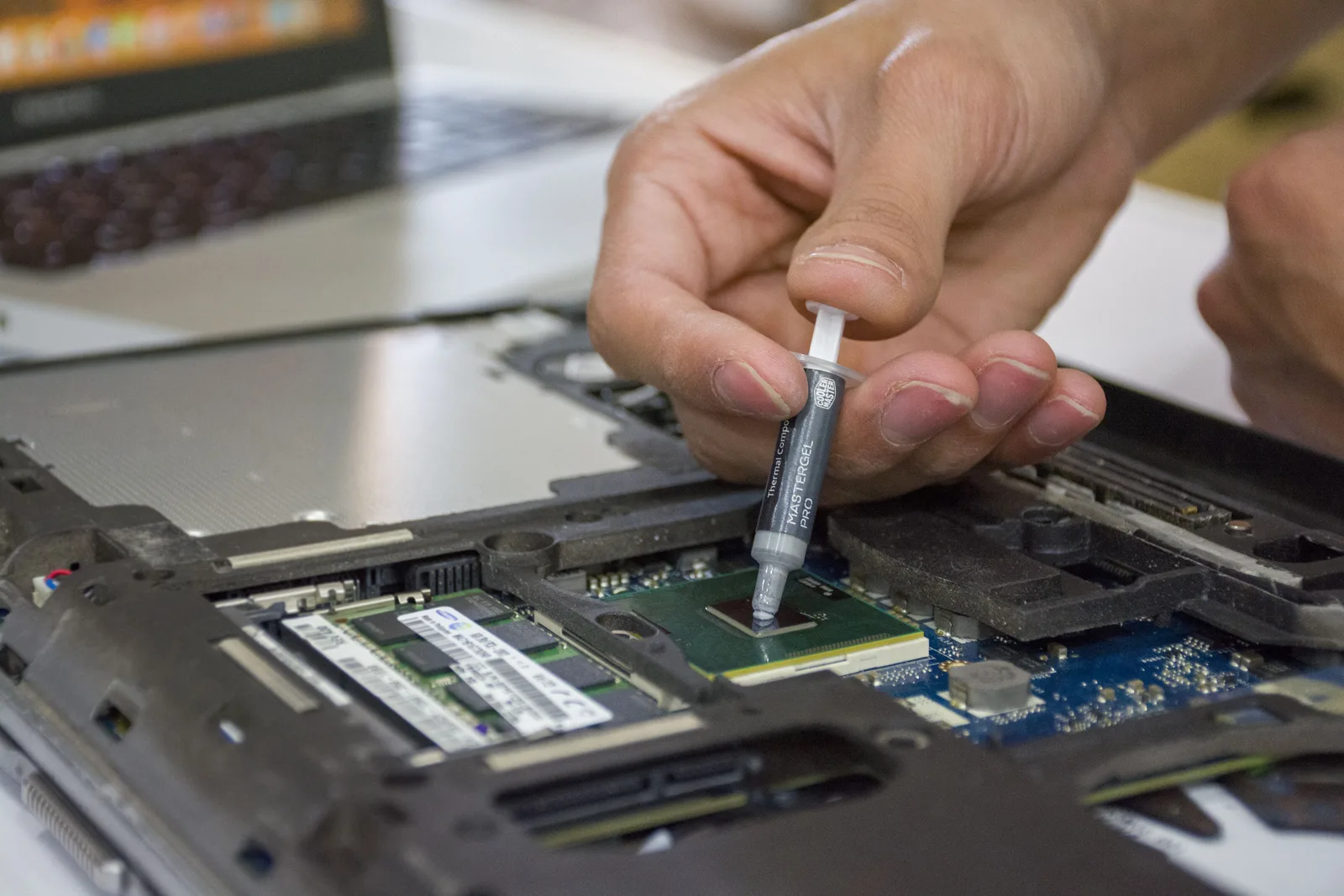
Do not blow debris deeper with uncontrolled compressed air or stop a spinning fan with a metal object. Follow service documentation. Persistent heat can result from dust, a failed fan, poor contact, malicious software, firmware, or a workload beyond the cooling design.
Wi-Fi drops or will not connect
Test another device on the same network and the laptop on another trusted network. This four-way test separates laptop and network causes. Which network layer each result points at is explained in home networking basics. Restart the access point only when you control it and can warn other users.
Four-way Wi-Fi test
Laptop on this network
- Laptop fails both networks
- Laptop fault
- Laptop fails only this network
- Network fault
- Other device also fails
- Network fault
Laptop on other network
- Laptop fails both networks
- Laptop fault
- Laptop fails only this network
- Network fine
- Other device also fails
- Laptop fine
Other device on this network
- Laptop fails both networks
- Network may be fine
- Laptop fails only this network
- Network fault
- Other device also fails
- Network fault
Forget and rejoin the network after confirming the password. Check airplane mode, hardware wireless switches, updates, VPNs, and power-saving settings. Install drivers from the laptop or wireless adapter maker, matched to the exact model.
External display fails
Confirm the monitor input, cable capability, adapter direction, dock power, port features, and supported resolution. Try a known-good cable and one display at a time. A USB-C connector may not carry video.
External display checks
- Monitor input selected
- Cable capability
- Adapter direction
- Dock power
- Port features
- Supported resolution
In Windows, use Settings > System > Display to detect displays and set a conservative resolution and refresh rate; on macOS, use System Settings > Displays. If the picture appears but flickers, test cable bandwidth, refresh rate, dock firmware, and power.
A port or accessory fails
Test the accessory elsewhere and a second known-good accessory in the same port. This shows whether the fault follows the device or stays with the laptop. Check connector debris visually without inserting metal.
For USB devices, distinguish power from data. A cable can charge but fail to transfer, or a port can provide data but too little power for a drive. Testing every port with a known-good device inside the return window is the last step of how to set up a new laptop. Safely eject storage before disconnecting it.
Applications and system crashes
Preserve the project and exact message. Check the app's version, system requirements, free storage, permissions, plug-ins, and service status. Try a new blank document. If that works, the original file or a linked asset may be involved.
Reinstall only after finding licenses, settings, templates, and unsynchronized data. Which local data is genuinely unsynchronized is the distinction drawn in file sync, backup, archive, and sharing compared. A whole-system reset is excessive when one plug-in causes the problem.
For a Windows blue screen, note the stop code and time, then check Reliability Monitor (search for "View reliability history") and Event Viewer (Windows Logs > System) around that time. Windows crash dumps may be stored in %SystemRoot%\Minidump when configured. On macOS, open Console and review crash or panic reports around the restart.
To isolate startup software, test Safe Mode; on Windows, use a Clean Boot to check whether a startup app or service is involved. If Windows will not start, use Startup Repair from Windows Recovery Environment. On a Mac, use Safe Mode to test startup and macOS Recovery when normal startup fails.
For suspected memory problems, use Windows Memory Diagnostic or MemTest86. If Windows reports corrupted system files, run DISM /Online /Cleanup-Image /RestoreHealth, then sfc /scannow; use chkdsk to check a drive. On a Mac, run Disk Utility > First Aid from macOS Recovery, or Apple Diagnostics to check hardware. Back up first, and seek help if a drive reports failure.
Measure before replacing
Low free space on the startup drive, one app using too much memory, an incompatible program, and a failing drive cause similar surface symptoms. In Windows, check free space in Settings > System > Storage and resource pressure in Task Manager or Resource Monitor; on macOS, use System Settings > General > Storage and Activity Monitor. Measure the constrained resource before deleting or replacing anything.
The method is the same everywhere. Fixing the wrong bottleneck costs money and changes nothing. If the measurement points to replacement, the design priorities for each category appear in laptop types compared.
When to escalate
Seek manufacturer or qualified repair support when:
- a safety symptom appears;
- storage reports failure or data becomes unreadable;
- the machine cannot complete diagnostics;
- firmware update fails or power is unstable;
- liquid or impact damage is present;
- the fault requires soldering, battery handling, or sealed-case work; or
- warranty terms may cover the repair.
Provide the model, serial, software version, exact symptom, reproduction steps, tests already run, and backup status.
Common questions
Does a slow laptop need more memory?
Only if measured memory pressure contributes to the workload. Storage, heat, startup software, processor limits, networks, and failing hardware can feel similar.
Should I update every driver from a search result?
No. Use supported operating-system, laptop-maker, or component-maker channels and match the exact hardware.
Can a factory reset fix hardware?
No. It may separate software from hardware causes, but it cannot repair a damaged port, swollen battery, failed fan, or bad storage.
Why is the fan loud after an update?
Indexing, scanning, optimization, or application updates may run afterward. Monitor load and allow supported processes to finish, then investigate if the behavior persists.