Features
Part of Software updates explained: what to check before and after
Staged technology update case: a home walkthrough
Staged technology update case follows a household from device inventory through backups, update sequencing, troubleshooting, router checks, and verification.
What to take away
- This fictional case separates urgent security work from broad feature changes.
- The household keeps one working device available while testing updates on another.
- Each update has an owner, backup check, installation window, test, and recorded result.
- A failed printer connection is isolated as a driver problem instead of prompting a full rollback.
- An unsupported tablet is removed from sensitive work rather than treated as current.
This staged technology update case follows the fictional Reyes household, which has two laptops, two phones, a tablet, a router, and a printer. It also has a smart thermostat, and one laptop is needed for remote work.
One phone receives account recovery codes, and the family postponed several alerts because they do not want everything restarting at once. They open each device's built-in update screen and read its official release notes to distinguish security fixes from feature changes. What update types mean is also set out in software updates explained.
Day 1: build the inventory
Device inventory fields
- Model and installed version
- Update channel
- Support status
- Owner
- Backup status
- Essential function
| Device | Essential function | Initial finding | First decision |
|---|---|---|---|
| Work laptop | meetings and documents | security update pending | prepare today |
| Family laptop | school and printing | feature release offered | use as first test computer |
| Phone A | account recovery | current | keep available |
| Phone B | daily communication | security update pending | update after backup |
| Tablet | casual browsing | no security release offered | check support status |
| Router | household network | firmware release available | schedule quiet window |
| Printer | school documents | driver status unknown | test after laptop update |
| Thermostat | heating control | automatic firmware | record version and support route |
The inventory turns eight alerts into separate changes. It also reveals dependencies: both laptops use the printer, every connected product depends on the router, and Phone A must remain available for sign-in prompts.
Mara records the owner, device role, manufacturer and model, operating system and version, support route, update source, and essential dependencies in Excel or Google Sheets. She checks the model and version on each device before deciding which update applies.
Day 2: rank the work
The family reads official release notes. The work laptop and Phone B updates correct security issues. The family laptop release is broader and changes features. The router firmware contains security and stability fixes. The tablet has reached the end of its published support period.
To confirm support status, they match each device's exact model and software version to the manufacturer's support page. For Windows, the Microsoft Lifecycle page lists product support periods; Apple publishes security releases for its products. For a Pixel phone, Google's Pixel Update Policy gives update support information; other Android devices require checking their maker's page. They record the applicable support page and the date they checked it. Version details are available in Windows Settings > System > About (or by running winver), About This Mac, iPhone Settings > General > About, and, on many Android devices, Settings > About phone.
For real vulnerability prioritization, CISA's Known Exploited Vulnerabilities Catalog identifies flaws with evidence of exploitation and tells organizations to use the catalog as an input to prioritization. The Reyes family does not map every home product to the catalog, but the principle is sound: evidence of active exploitation can move a compatible update ahead of a cosmetic release.
Their order becomes:
Update priority order
- Protect data and update Phone B
- Update work laptop in evening window
- Test feature release on family laptop
- Update router after laptops stable
- Remove unsupported tablet from accounts
Day 3: protect and test
Mara confirms that recent laptop documents open from the backup destination. She checks phone photos and messages, records current versions, saves router configuration, and locates account recovery information. That preparation, item by item, is the software update readiness checklist.
Before an update, the family checks that it has the correct device and release, reads the official release notes, confirms the backup is current and accessible, keeps recovery information available, and chooses a window when an essential device can be offline. For a copyable backup check, open a recent file from the backup; review the phone's photos or messages from its backup or synced destination; and confirm the router's configuration export is saved securely if the model provides one.
Examples of built-in or commonly used backup options include File History or OneDrive on Windows, Time Machine on Mac, iCloud Backup on iPhone, and Google One backup on supported Android devices. The family laptop is updated first because the work laptop must remain available.
Install through the device's built-in updater: Windows Settings > Windows Update, macOS System Settings > General > Software Update, and iPhone Settings > General > Software Update. Android menu names vary by maker; look under Settings for System or Software update, and use the device maker's instructions if the menu differs.
Printer fault isolation
- Printing fails after update
- Check printer queue
- Check connection
- Check driver
- Check maker support page
- Install current driver
After restart, the family laptop connects to Wi-Fi, opens school files, plays audio, and reaches the internet. Printing fails. Instead of rolling back the entire operating system, Mara checks the narrower boundary: the printer queue, connection, driver, and maker support page. She finds the printer's exact model on its manufacturer's official support page, selects the driver for the laptop's operating system, and installs it; the current driver restores printing. Finding that narrower boundary first is the method in software update problems.
That result becomes evidence for the work laptop plan. The work laptop has the same printer model but different applications, so its own essential tests remain necessary.
Day 4: routine and emergency paths
The work laptop security update installs successfully. Phone B finishes its update while connected to power and Wi-Fi. For each device, the family restarts it, confirms sign-in and network access, opens essential files and apps, and checks the functions the device is needed for. On a phone, that includes calls, messages, and account sign-in; on a laptop, it includes the work or school apps, camera, microphone, and printer when needed. The family then schedules the router for a period when no call, upload, or heating change depends on connectivity.
Routine vs emergency patching
Routine
- Timing
- Planned window
- Risk
- Normal maintenance
- Mitigation
- Standard update
- Example
- Router night
Emergency
- Timing
- Faster action
- Risk
- High-risk issue
- Mitigation
- Isolate or disconnect
- Example
- Security flaw
NIST's enterprise patching practice guide distinguishes routine and emergency patching, includes inventory and prioritization, and discusses isolation or other mitigation when immediate patching is not possible. A home has fewer systems, but the same distinction helps: normal maintenance can use a planned window, while a high-risk issue may justify faster action or temporary disconnection.
Router night
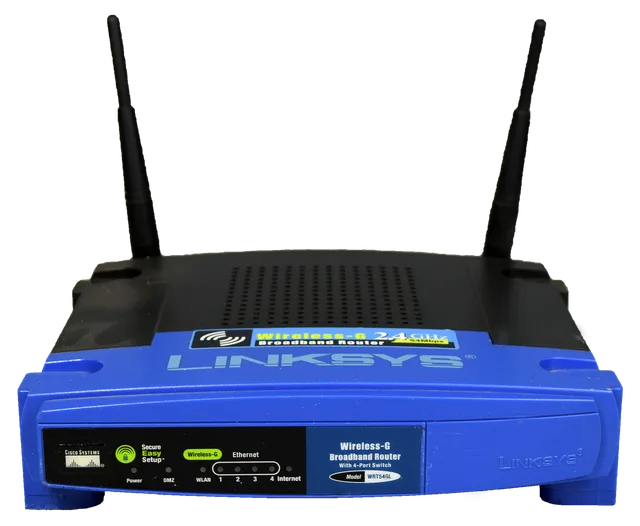
The family confirms stable power, downloads nothing from third-party sites, and starts firmware installation through the router maker's official app or local admin page. They check the exact router model against the maker's instructions, use its documented configuration export and restore process if available, and do not unplug it while status lights change.
Router night checks
- Confirm stable power
- Avoid third-party downloads
- Start official firmware install
- Do not unplug during status lights
- Verify firmware version
- Check Wi-Fi and guest isolation
- Check password and devices
Post-restart, Mara checks the firmware version on the router's status or administration screen and verifies internet access, both Wi-Fi networks, and guest isolation. She checks password settings, connected devices, and the thermostat connection. How one household chose that thermostat and kept a manual fallback is a smart home rollout case.
The exported configuration is retained until the household has observed normal operation. It is stored securely because router backups can contain sensitive settings.
The unsupported tablet
The tablet still turns on and browses the web, but it no longer receives security fixes. The family does not call it updated just because its app store has a few app releases.
They remove sensitive accounts, copy wanted files, reset it using current maker instructions, and pick a reuse or recycling route. The same keep-or-retire question, asked about a laptop battery, is a battery replacement case.
Final record
The finished log contains no passwords. It records:
- device and owner
- previous and installed versions
- source of the update
- installation date
- test results
- fault and fix for the printer
- follow-up date for the router
- retirement decision for the tablet
The household now has a repeatable monthly check instead of a pile of unexplained alerts.
Common questions
Why did the family update one laptop first?
It preserved a working computer and exposed the printer-driver issue before the work laptop changed.
Why was the router updated later?
Every connected device depended on it, so the family chose a controlled window after endpoint testing.
Could the tablet still be used offline?
Possibly for limited low-risk tasks, but accounts, sensitive data, radios, and future disposal still need a clear plan.
Is this schedule right for every household?
No. Device roles, security notices, support status, medical needs, work rules, and recovery options change the order.