Guides
Modems, routers, Wi-Fi, and wired links: home networking basics explained
Home networking basics covering modems, routers, Wi-Fi, Ethernet, addresses, speeds, latency, security, coverage, device roles, and practical planning.
What to take away
- Internet service reaches the home, while the local network connects devices inside it.
- A modem or optical terminal links to the provider; a router directs traffic between local devices and outside networks.
- Wi-Fi is a local wireless link, not another word for the internet.
- Speed, latency, packet loss, coverage, and capacity describe different parts of performance.
- Router updates, strong credentials, current encryption, and a device inventory reduce avoidable risk.
A home network can fail even when the internet provider is working, and internet service can fail while local printing still works. Keeping those layers separate is the first useful networking skill.
Equipment and menu terms vary by provider and manufacturer. Confirm port roles, reset procedures, and supported settings for the exact hardware.
The path from a device to the internet
A typical request travels through several stages:
Device to internet path
- App requests named service
- Device sends over Wi-Fi or Ethernet
- Router forwards to provider
- Provider and internet carry it
- Response returns along route
A failure at any stage can look like "the Wi-Fi is down." Test each layer instead of resetting everything.
What each box does
| Component | Main job | May be combined with |
|---|---|---|
| modem | converts a cable or DSL service signal | router and Wi-Fi access point |
| optical network terminal | terminates a fiber service | sometimes router functions |
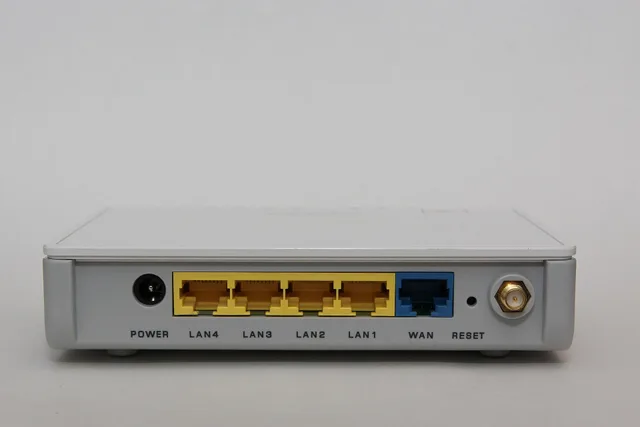
| router | moves traffic between the home network and other networks | firewall, switch, Wi-Fi |
| Ethernet switch | adds wired local-network ports | router |
| wireless access point | provides Wi-Fi access to a wired network | router |
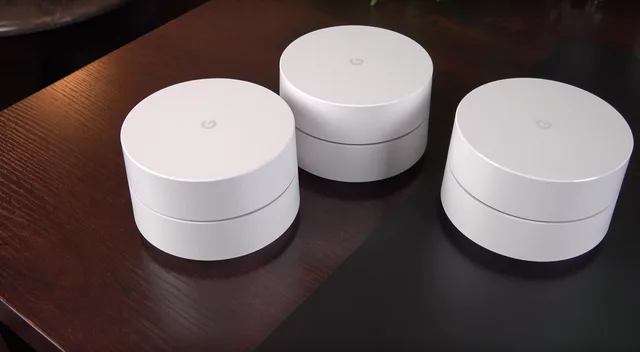
| mesh node | extends one coordinated wireless system | router or access point |
A single provider box may perform four roles. This convenience can make diagnosis confusing. Record which device owns routing, address assignment, Wi-Fi, and provider termination.
Home network device roles
Component
- modem
- converts cable or DSL signal
- optical network terminal
- terminates fiber service
- router
- moves traffic between networks
- Ethernet switch
- adds wired local ports
- wireless access point
- provides Wi-Fi to wired network
- mesh node
- extends coordinated wireless system
Main job
- modem
- router and Wi-Fi
- optical network terminal
- sometimes router functions
- router
- firewall, switch, Wi-Fi
- Ethernet switch
- router
- wireless access point
- router
- mesh node
- router or access point
May combine with
- modem
- optical network terminal
- router
- Ethernet switch
- wireless access point
- mesh node
Local addresses and names
The router usually assigns local IP addresses through DHCP. Those addresses identify devices on the home network. Network address translation commonly lets many local devices share the provider-facing connection.
DNS translates domain names into network addresses. A DNS failure may stop named websites while some existing connections continue. It does not mean the Wi-Fi radio itself failed.
The Wi-Fi network name is the SSID. It helps users select a network but is not a security control. A hidden name can still be detected and may complicate reliable connections.
Performance terms that are not interchangeable
Performance terms
- Download speed is the rate toward the home.
- Upload speed is the rate away from the home.
- Latency is the delay before data returns.
- Packet loss is data that does not arrive successfully.
- Jitter is variation in delay.
- Wi-Fi signal strength describes the local radio link, not provider capacity.
- Coverage describes where a usable signal exists.
A Wi-Fi speed test measures the combined device, radio, router, provider, and test-server path.
For provider diagnosis, compare a supported wired test at the router with Wi-Fi tests in named rooms.
To judge how much capacity a plan needs, the FCC's Broadband Speed Guide lists minimum download speeds per activity. It gives about 1 Mbps for browsing and email, 5 to 8 Mbps for HD streaming, and 25 Mbps for 4K video, measured one activity at a time.
Wi-Fi bands and placement
Modern routers may use 2.4, 5, and 6 GHz bands. Broadly, lower frequencies often travel farther through a home, while higher bands can offer more capacity under suitable conditions. Exact performance depends on channels, width, interference, walls, device support, and regulations.
Place an access point in an open, central, and elevated position when cabling and the building allow it. Avoid metal cabinets, floor-level corners, and close placement beside major interference sources.
More transmit power does not fix a weak return signal from a phone. The phone's contribution at its end of the link is covered in cellular, Wi-Fi, Bluetooth, NFC, and GPS compared.
Wired Ethernet
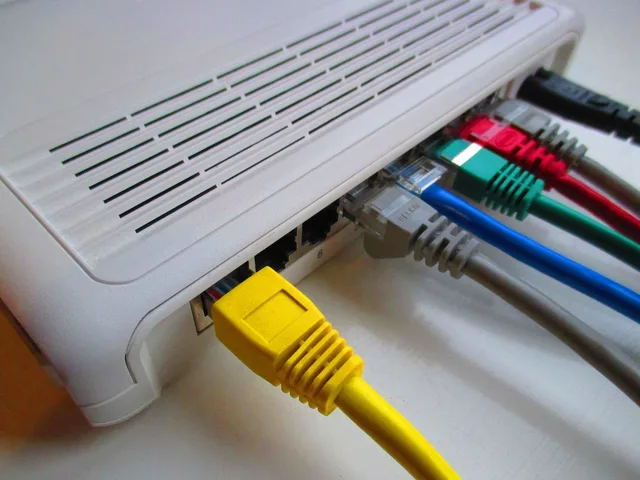
Ethernet provides a dedicated cable path between ports. It is often a good choice for stationary computers, televisions, game systems, access points, and network storage. A wired backbone can leave more radio capacity for mobile devices.
Cable category, length, termination, port speed, and device capability affect the link. A gigabit port cannot make a 100-megabit internet plan faster, and a fast internet plan cannot overcome a damaged local cable.
Basic security model
The Federal Trade Commission's home Wi-Fi security guidance recommends current WPA3 or WPA2 encryption, unique router-admin and network passwords, router updates, a guest network, logout from administration, and a router firewall. It also advises disabling remote management, WPS, and UPnP when those convenience features are not needed.
Treat the router-admin password and Wi-Fi password as separate secrets. The first changes network controls; the second joins a device to the network. Record recovery and reset procedures before changing either one. The order for changing them safely, with firmware and encryption first, is in how to set up a home router securely.
A simple network plan
Create a table with device, owner, connection, room, importance, update method, and data sensitivity. The device-and-account version of that inventory opens how to harden personal devices and accounts. Give wired connections to stable high-demand devices where practical. Put access points where users are, not merely where the provider cable enters.
Keep smart appliances and guest devices separated when the router supports useful isolation. Separation only helps if it is configured and tested. Some guest networks block local printers or casting by design. Testing that boundary on a schedule is one item in the home network maintenance and security checklist.
Common questions
Is a router the same as a modem?
No, though one box may contain both. The modem or terminal connects to the provider technology; the router directs traffic between networks.
Does full Wi-Fi signal mean fast internet?
No. It shows a strong local radio relationship. Provider congestion, plan limits, remote services, and local traffic can still be slow.
Will a faster plan improve a dead zone?
Usually not. A dead zone is mainly a local coverage problem. Access-point placement, wired backhaul, interference, or building materials need attention.
Should every device use Wi-Fi?
No. Wired Ethernet can provide stable service to fixed devices and reduce demand on shared radio capacity.
In this guide
- Set Up Home Router Security: Key Areas to ReviewLearn how to set up home router equipment securely: document connections, update firmware, protect Wi-Fi, group devices, and check network access.
- Wi-Fi Ethernet mesh compared: extenders and powerlineWi-Fi Ethernet mesh compared: how Ethernet, access points, mesh systems, range extenders, and powerline work, what they cost, and where each fits at home.
- Home network checklist: provider terms, records, outage planA home network maintenance checklist for equipment records, provider terms checked against the FCC label, monthly speed tests, and an outage plan.
- Home network trouble: how to isolate the layer that's actually failingHome network troubleshooting for no internet, weak Wi-Fi, slow speeds, drops, double NAT, DNS, device failures, and mesh problems using controlled tests.
- Home network upgrade case: nine steps from complaint to fixA home network upgrade case in nine steps: how a household measured demand, fixed access-point placement, wired key devices, separated cameras and tested it.