Rules
Part of Getting accessible technology right the first time
9 parts of accessibility feature problems, explained
Accessibility feature troubleshooting for lost speech, changed gestures, missing captions, disconnected devices, update failures, and safe recovery paths.
What to take away
- Restore a usable communication or input path before investigating the original fault.
- Identify whether the failure affects one feature, one app, one account, or the whole device.
- Check simple state changes before resetting profiles, removing drivers, or erasing settings.
- Preserve working configurations and record each change so it can be reversed.
- Use another accessible device to obtain support when the failed device blocks help.
An accessibility failure can prevent a person from reading the very instructions needed to fix it. The first objective is safe access, not a perfect diagnosis. Keep the user informed and do not seize control of their device without permission. User control over the setup is a principle throughout the accessible technology guide.
Start with a fallback
Move to a known working input or communication method. That may be a hardware keyboard, another screen, a paired hearing device, a second phone, a human interpreter, a printed large-type reference, or a support person following the user's directions.
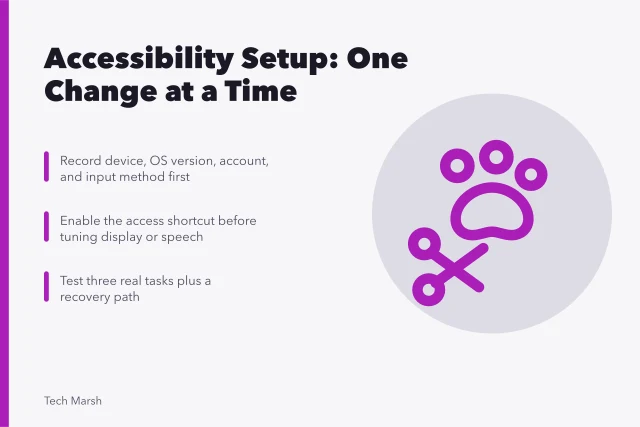
If the device is used for urgent communication, work, health information, or travel, stabilize that need first. Arranging that fallback before any control changes is an early step in setting up accessibility features. Avoid restarting until you know whether the feature launches at sign-in and how to reactivate it.
Define the boundary
Ask four questions:
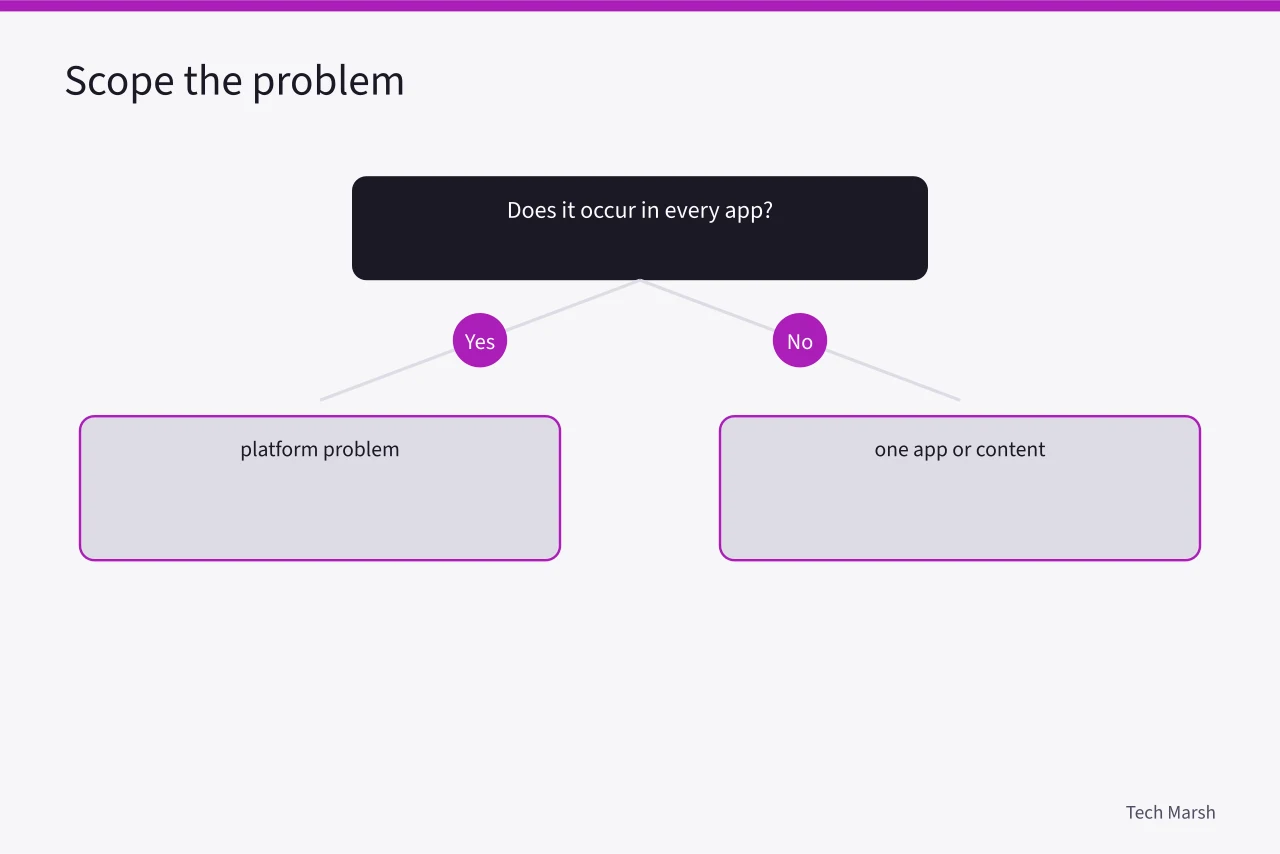
- Does the problem occur in every app or one app?
- Does it affect one document, site, account, or accessory?
- Did it begin after an update, pairing, profile change, or low battery?
- Can another user profile or device perform the same task?
This boundary separates a platform problem from inaccessible content, an app defect, an account setting, or hardware failure. The same scope question opens common smartphone problems and fixes.
No speech or wrong audio output
Check mute, volume, output device, headphones, Bluetooth routing, per-app volume, and whether the screen reader or read-aloud feature is running. Try the documented shortcut once, then pause and listen. Repeated toggling can turn the feature off again.
Confirm that speech works in a system menu before blaming a document. If system speech works but one app is silent, inspect that app's focus, permissions, and compatibility.
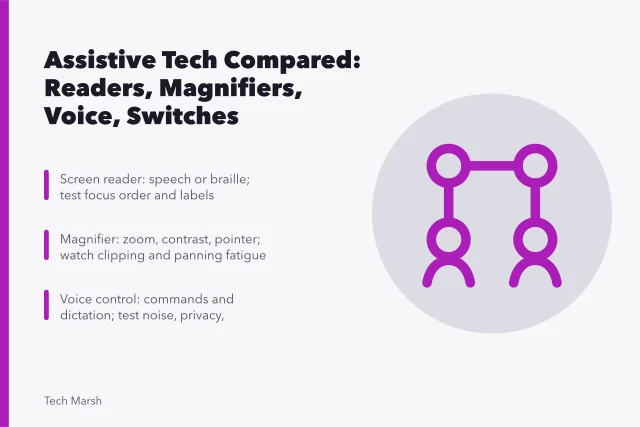
Speech features come in distinct families. The W3C's overview of assistive tools and techniques separates screen readers from screen magnifiers, speech recognition, and the adaptive strategies people layer on top of them, and a device can run several of these at once. Identify which family is actually active before changing anything, or the fix lands on the wrong feature.
Gestures or controls suddenly changed
Screen readers and switch systems can reinterpret ordinary gestures. A one-finger action may become a two-finger action, focus may need to move before activation, or a scan may wait for a timed selection.
Try the feature's basic navigation card on a neutral screen. Check whether a tutorial, practice mode, custom gesture set, keyboard layout, or switch profile is active. Disconnect one recently added accessory at a time while keeping a fallback input connected.
Do not delete the user profile as a first step. Export or photograph mappings in an accessible way before resetting them.
Missing or poor captions
Determine whether captions come from the media, the app, the operating system, or a live service. Check language, microphone source, internet connection, downloaded language pack, caption window placement, and whether another audio source is playing.
For recorded media, see whether human-prepared captions are available rather than relying on an automatically generated track. For live use, test delay, speaker identification, technical vocabulary, and privacy in the actual environment. What captions can and cannot cover is set out in assistive tools compared.
Braille display, switch, or hearing device disconnects
Check power, charge, cable seating, adapter direction, pairing state, and distance. Confirm that the device is connected in the accessibility feature as well as in general Bluetooth or USB settings. Some accessories pair at the system level but still need selection inside the access tool.
Restart only one component at a time. If a firmware or operating-system update preceded the fault, record exact versions and consult both vendors' compatibility notes. Test a known cable or port without changing several variables together.
A screen reader was turned on by accident
Do not tap rapidly. Listen for the focused item and remember that activation may require a double-tap after focus. Try the configured accessibility shortcut or voice command.
A screen reader renders the interface as speech or braille, not the visual layout. That is why the usual taps stop behaving as expected while one runs. VoiceOver on Apple systems and TalkBack on Android are the built-in examples.
Use the platform's documented off switch for the exact device. Shortcut, assistant, and settings routes vary by model and setup.
After access is restored, ask whether the shortcut should remain. Removing it prevents accidental activation but also removes a rapid recovery method for someone who needs the feature.
Update caused a failure
Record the operating system, app, driver, firmware, and accessory versions. Test a new user profile only if that will not remove access to needed settings or data. Check official support notices and known issues. Preserve logs and error text.
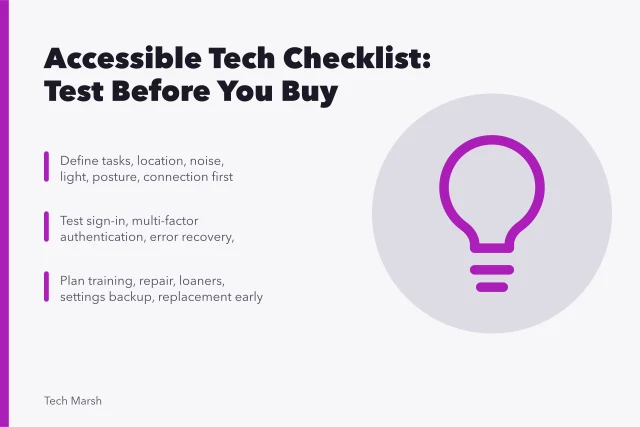
Do not downgrade firmware or erase the device unless the vendor supports that path, current data is backed up, and the user understands the consequences. Recording settings and profiles so they can be restored is one item in the accessible technology checklist. A temporary accessible alternative may be safer while a fix is developed.
Escalation record
Give support a compact report:
- exact device and software versions;
- access feature and connected hardware;
- last known working date;
- steps that reproduce the fault;
- expected and observed result;
- fixes already tried;
- impact on communication, safety, or work;
- accessible way and time to contact the user.
Common questions
Should I factory-reset the device if accessibility stops working?
Not first. Establish a fallback, preserve data and profiles, identify the boundary, and use supported troubleshooting.
Why does touch behave differently with a screen reader active?
The screen reader may use touch to move focus and require a separate activation gesture.
Can an app update break an accessibility workflow?
Yes. Interface structure, permissions, drivers, and focus behavior can change even when the access feature itself is unchanged.
What belongs in a support request?
Include exact versions, hardware, steps, expected behavior, observed behavior, impact, and an accessible contact method.